Description:
- Some legacy media player, such as Windows Media Player may not support Soft subtitle, hence the Channel Name and Timestamp may not appear correctly, while the exported video is played using such player.
- In this case, using hard merged subtitles in video export will have the Channel Name and Timestamp permanently superimposed on the video.
Procedure
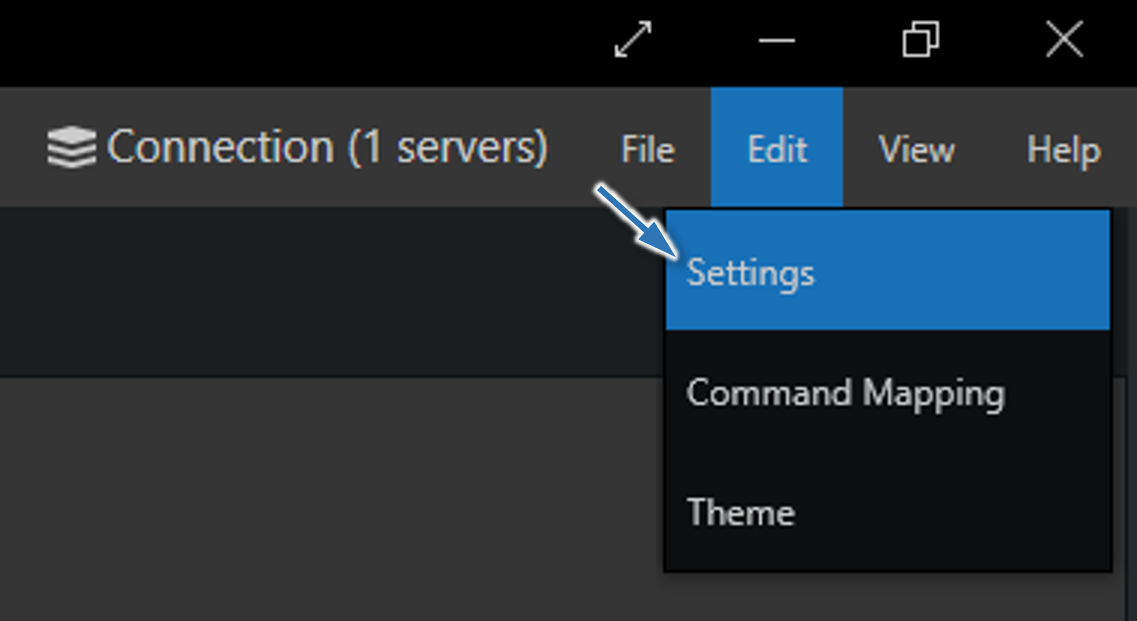
Step 1: In Macula Monitor, open Video export setting via main menu Edit ▶ Settings ▶ Video export
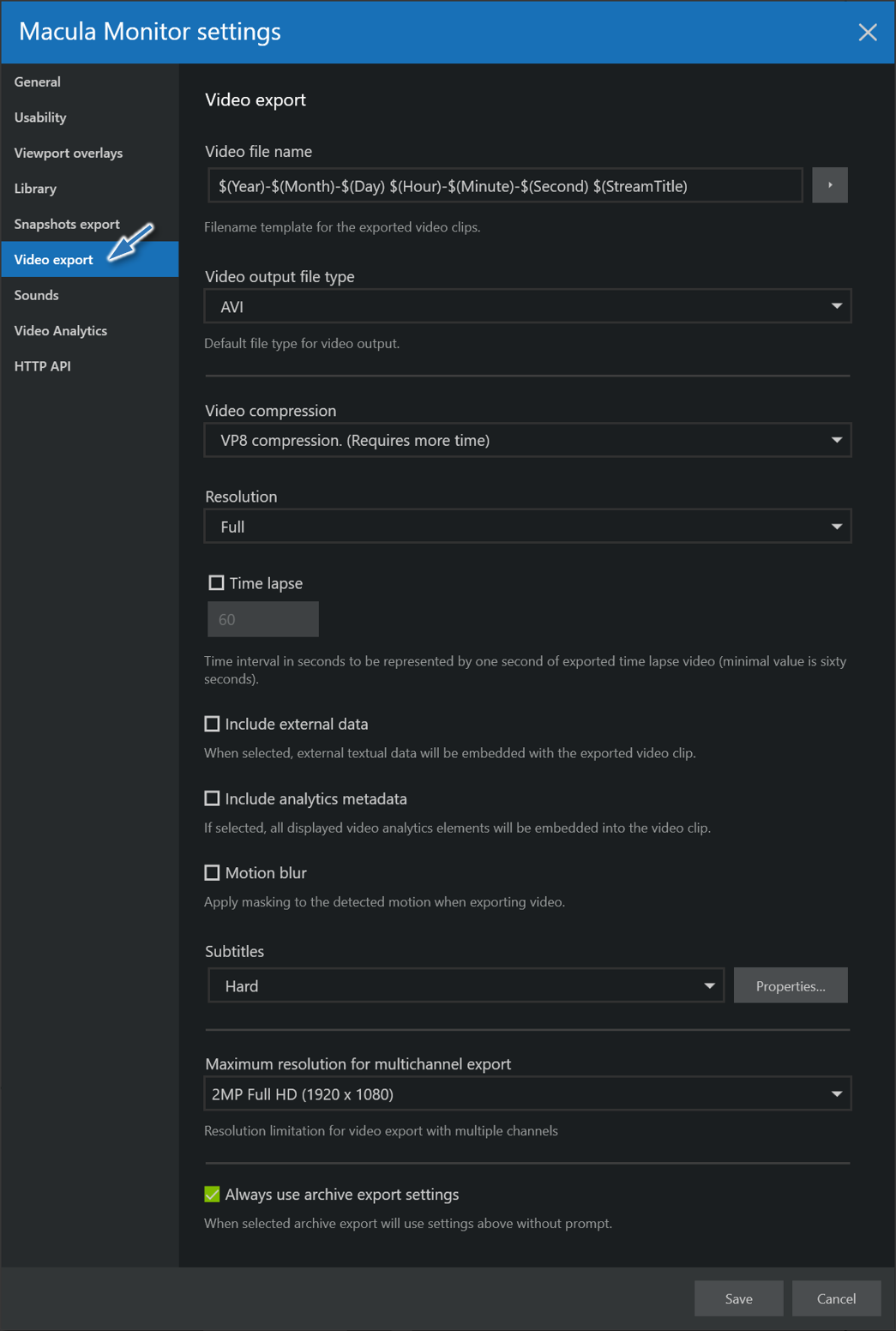
Step 2: Then, in Video output file type, select either AVI or MKV.

Step 3: For Video compression, select VP8 compression.

Step 4: For Subtitles, select Hard.

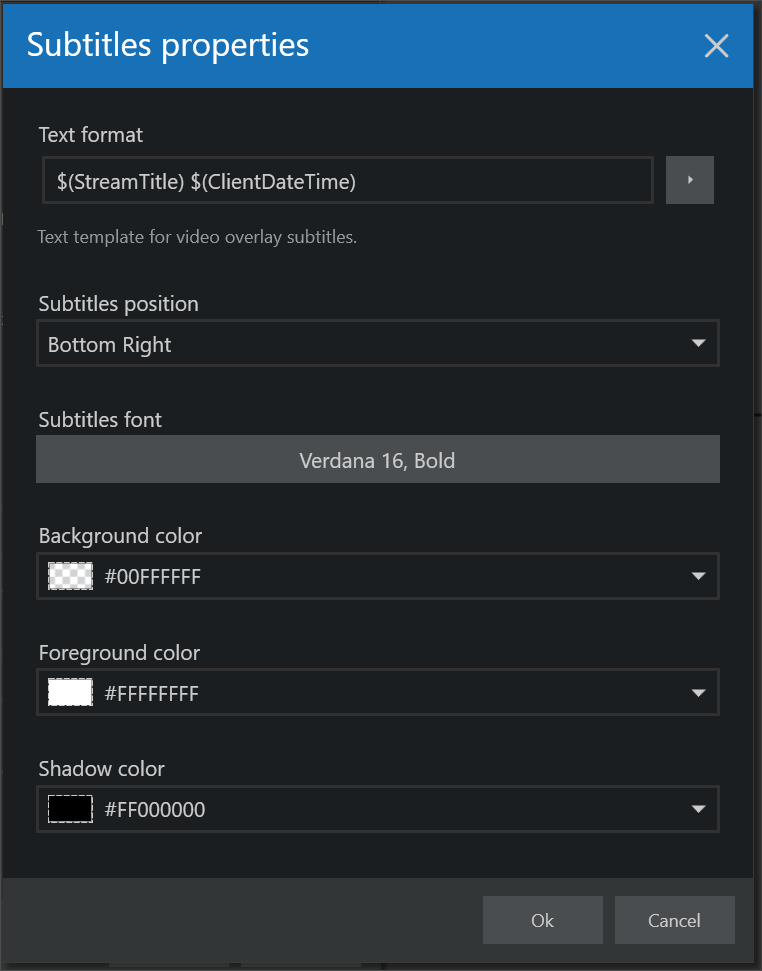
Step 5: If you want to modify the properties and style of the subtitle, click Properties... Otherwise, skip to next step.

In Subtitles properties, you can modify the
- Text format
- Subtitle position, Subtitles font
- Background color, Foreground color, Shadow color
Step 6: Press Save button. Then, proceed with Export video
Was this article helpful?
That’s Great!
Thank you for your feedback
Sorry! We couldn't be helpful
Thank you for your feedback
Feedback sent
We appreciate your effort and will try to fix the article