Step 1: Start the Macula Activation wizard,
Step 2: Go to Start -> All Apps -> Macula -> Macula Registration & Activation
Online Activation
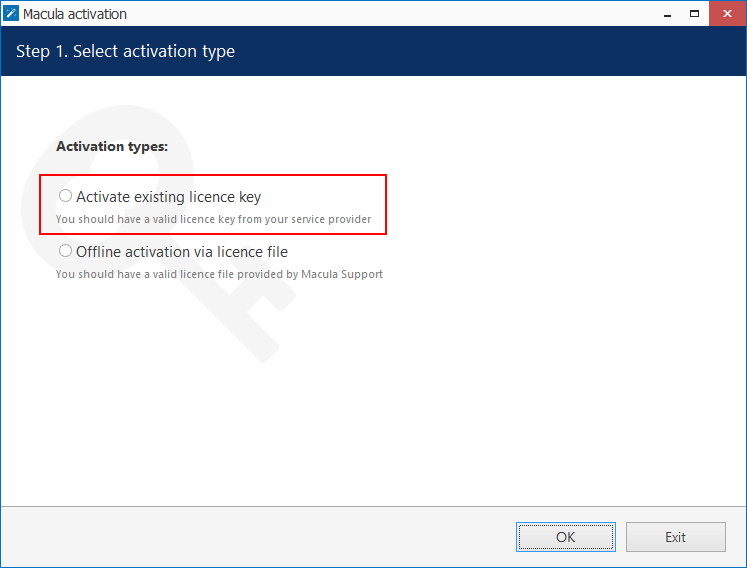
1. If your server has an Internet connection available, you can choose online activation mode.
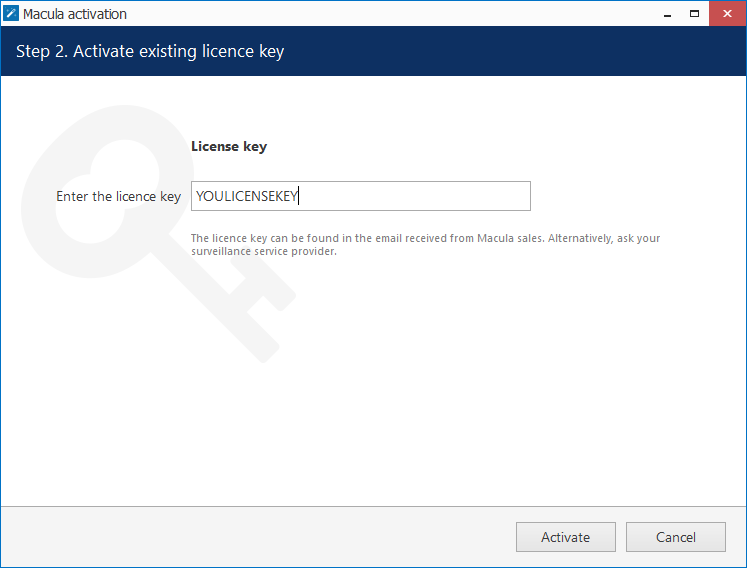
2. Enter your product license key and hit Activate.
Offline Activation
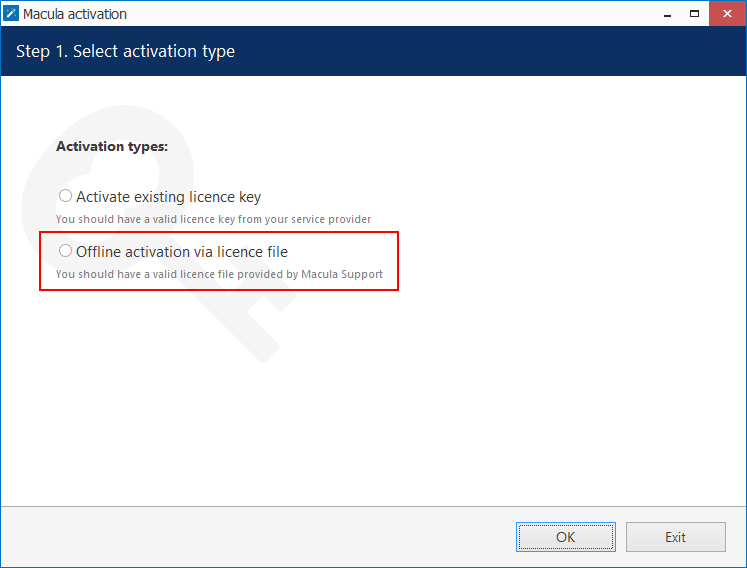
1. If there is no Internet connection for security reasons and/or server disposition particularities, choose the Offline Activation type.
2. This mode consists of three steps:
- generate the activation file on the target server
- go to the online activation system at http://app.gsfcorp.com/macula/activation/ and fill in the form
- apply provided license file to your system
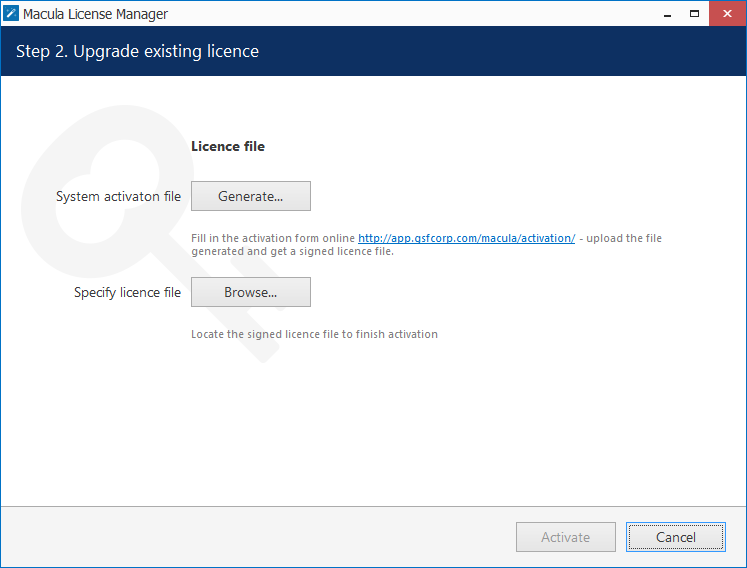
3. Click Generate to create the activation file; choose a location and save it. The default file name is system.bin and we do not recommend changing it.
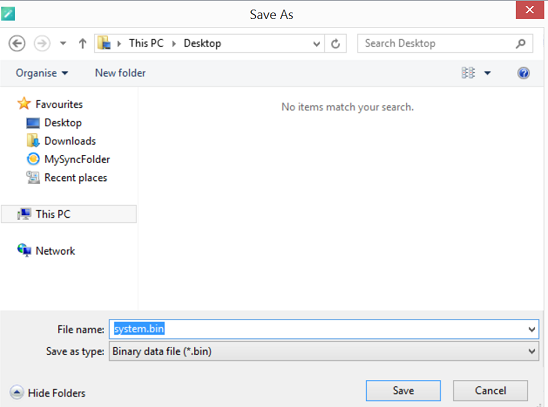
4. Next, copy this binary file to any other computer that has Internet access, then go to the online form available at http://app.gsfcorp.com/macula/activation, fill in the required fields and upload the file. The activation system will process your file and allow you to download a license file. This license file will be unique and will only be valid on the same machine from which the original system.bin file comes.
5. Click Browse to locate it and open the license.dat file provided by the activation system.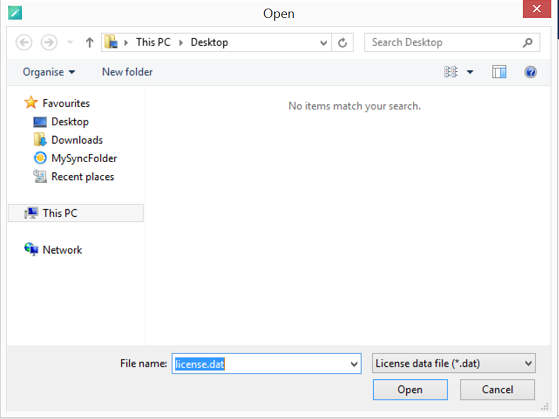
6. The validated license.dat file will be loaded, allowing you to finish the registration process.
7. Click Activate to apply the license file.
Was this article helpful?
That’s Great!
Thank you for your feedback
Sorry! We couldn't be helpful
Thank you for your feedback
Feedback sent
We appreciate your effort and will try to fix the article