Step 1:
1. Select Smart Search tab and then double click the desired channel from Channel panel on the left.
Step 2:
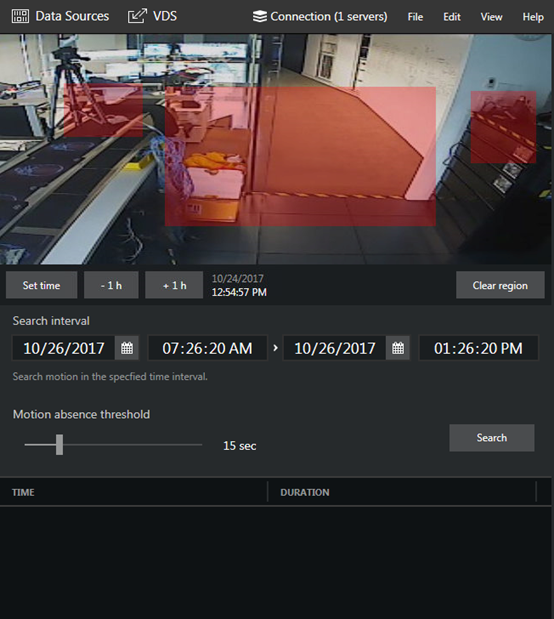
1. Click and drag on the picture to draw a rectangular region of interest.
Step 3:
1. Set the search interval using the controls below the picture.
Step 4:
1. Set the desired Motion absence threshold* for the motion absence by dragging the slider.
2. Click the Search button.
* It defines how much time should be there between two subsequent motion events for them to be reported as a single event
Step 5:
1. Click the event of interest in search result list, the selected video clip will be looped and played back continuously.
Step 6:
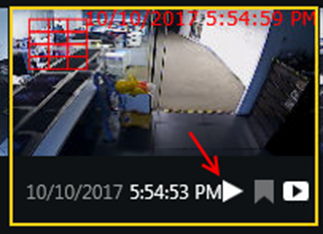
1. Click the play button to play selected footage in playback tab.
Was this article helpful?
That’s Great!
Thank you for your feedback
Sorry! We couldn't be helpful
Thank you for your feedback
Feedback sent
We appreciate your effort and will try to fix the article