Step 1: Define Exported File Location
1. Click Edit > Setting to open Macula Monitor Setting dialog box.
2. Select Library, click browse button to assign the location for snapshots and exported video. Click the Save button.
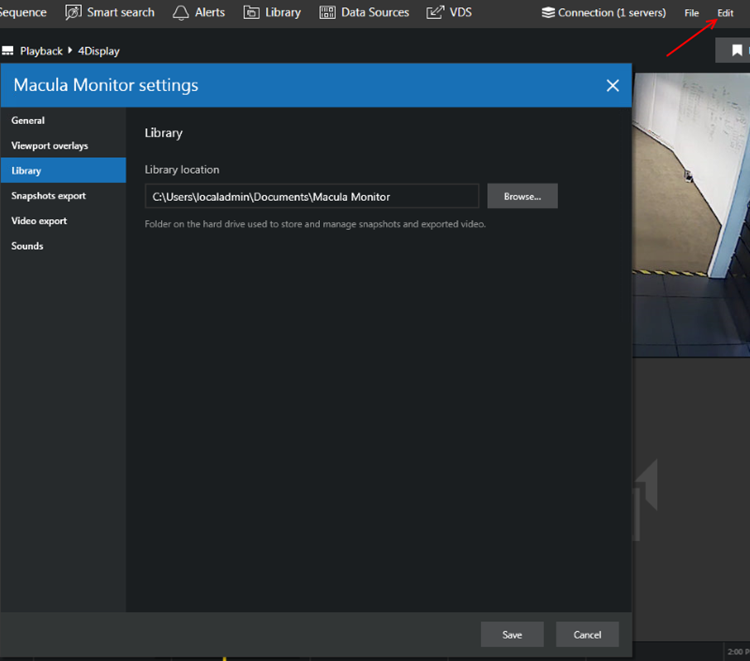
3. Select Library, click browse button to assign the location for snapshots and exported video. Click the Save button.
Step 2: Snapshot
1. Select the camera channel viewport
2. Click the snapshot icon.
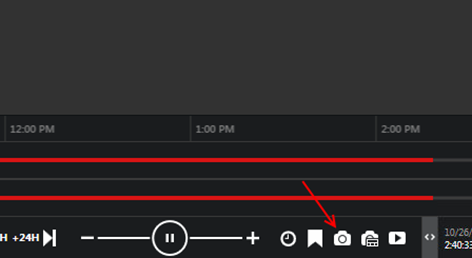
3. Select Library tab, click the snapshot image file.
4. Click the Show in Windows Explorer button to display the export directory containing the selected file.
Step 3: Export Video
1. Select the camera channel viewport
2. Click the Export Video Clip icon.
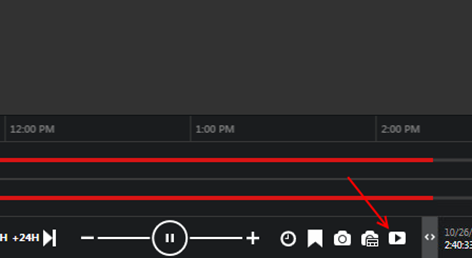
3. Choose the Video & Audio stream, set the export time range and then click the Export button.
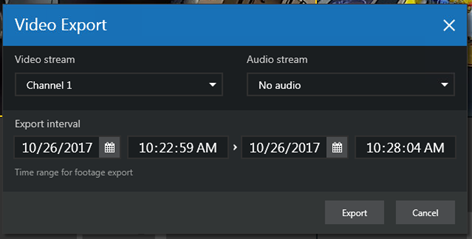
4. Click the Export button on Video export dialog box.
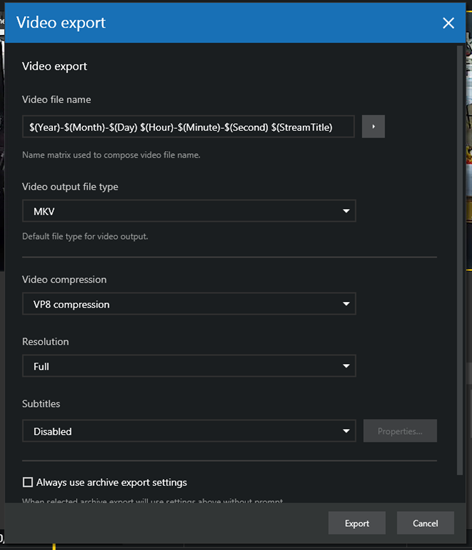
5. Select Library tab, click the snapshot image file and then click the Show in Windows Explorer button to display the export directory containing th3 selected file.
Was this article helpful?
That’s Great!
Thank you for your feedback
Sorry! We couldn't be helpful
Thank you for your feedback
Feedback sent
We appreciate your effort and will try to fix the article