IMPORTANT: Please ensure you run the Problem Report Wizard on the right computer: it gathers information from the machine it has been launched on, and not from any of the servers connected via Macula Console or Macula Monitor.
1. Please Access Problem Report Wizard via Start -> All Apps -> Macula -> Macula Problem Report Wizard (in Windows 7 and older versions, use Start -> All Programs -> software installation folder -> Tools -> Macula Problem Report Wizard); alternatively, use Windows Start Menu Search to locate the Problem Report Wizard in the programs menu.
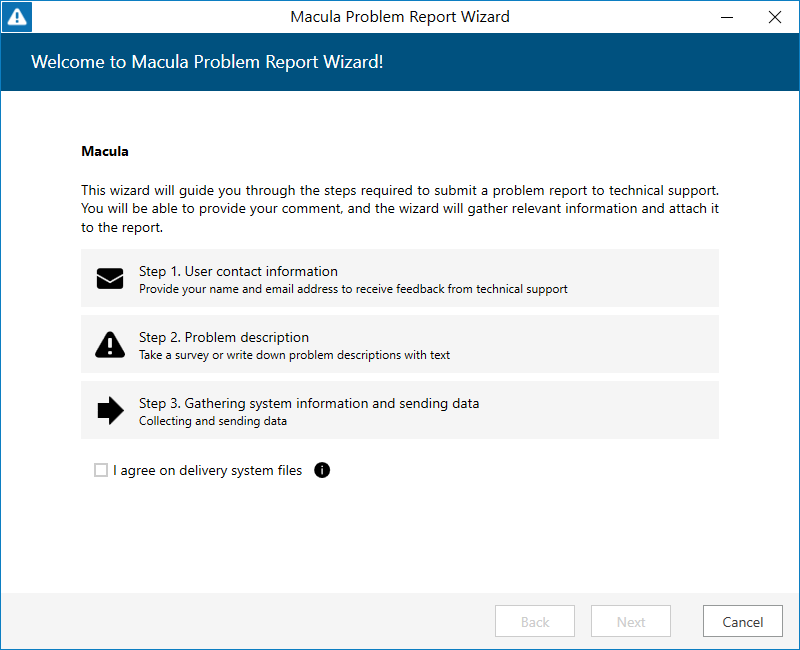
2. Agree to deliver system files to GSF support and hit Next
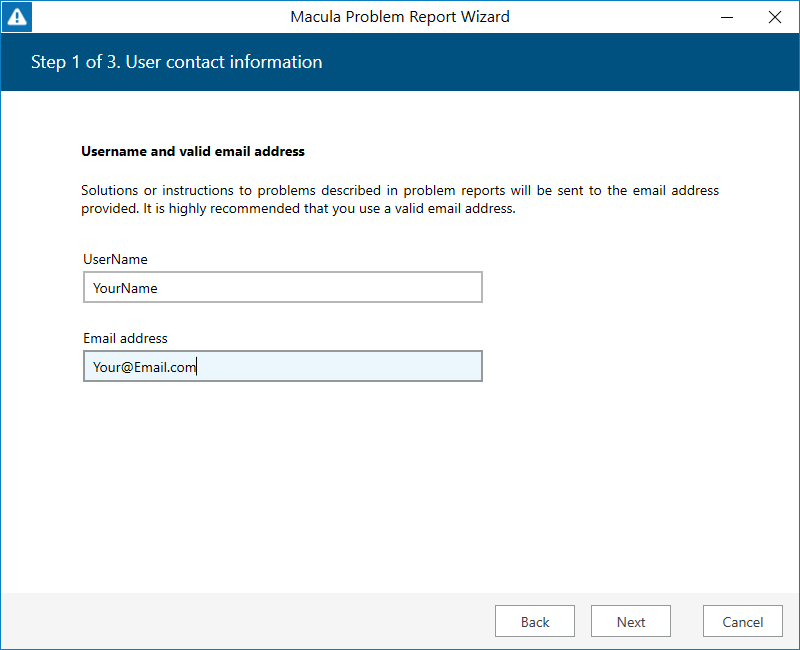
3. Enter your name and your email address so that the GSF support team can contact you. Click Next to proceed.
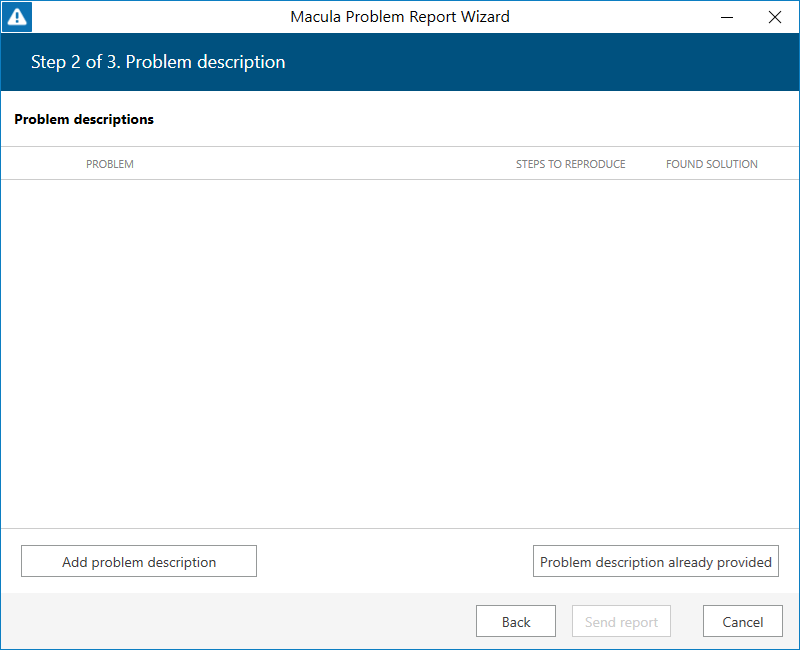
4. Click the Add problem description button.
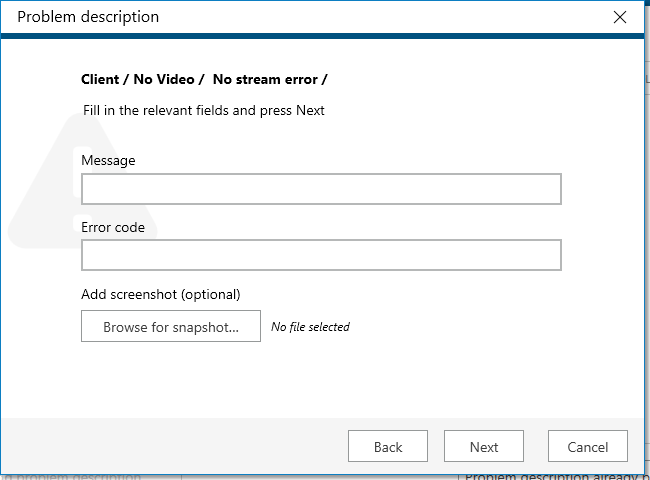
A short comprehensive wizard will guide you through the main issue categories, allowing you to choose the ones that are most applicable to your situation. You will be given the chance to enter error messages/codes, if there are any, and to attach snapshot(s). Make sure you provide the maximum amount of relevant information about the issue you are experiencing; always include snapshots if they are available.
5. You can add multiple descriptions to a single report. When you are ready, press the Send report button; the wizard will then try to send the report automatically.
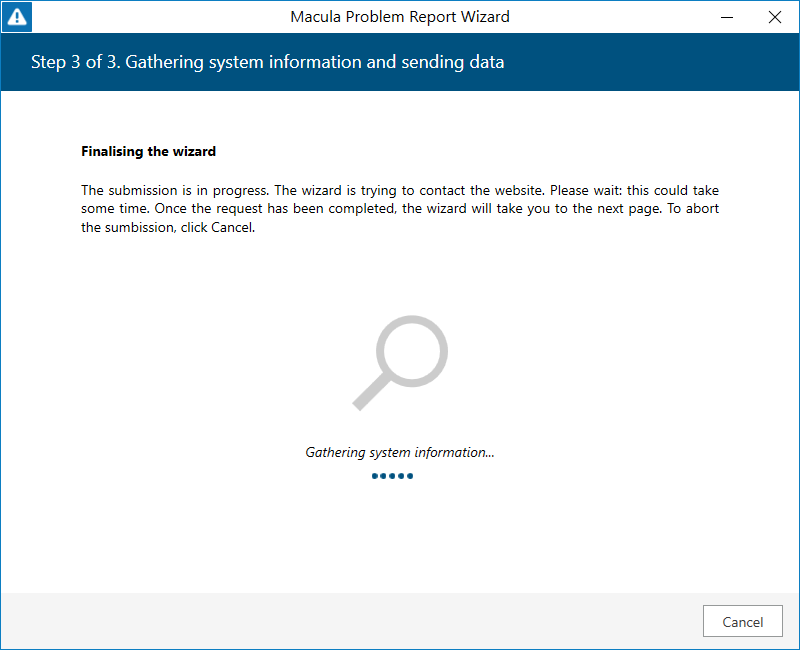
6. If the server is offline, the wizard will not be able to submit the report to GSF; instead, you will be invited to save the generated report locally. Press the Finalise wizard without upload button to finish.
7. Click Save report as file to save the compressed report on your computer; you are welcome to send it manually from
any other computer to support@gsfcorp.com.
8. Click Exit to close the wizard.
Was this article helpful?
That’s Great!
Thank you for your feedback
Sorry! We couldn't be helpful
Thank you for your feedback
Feedback sent
We appreciate your effort and will try to fix the article