Applicability:
- ecaOS 5
- ecaOS 6.0
Library File:
- LB202208081648
Description:
- Follow the following procedure to replace the Hard Disk Drive in a Redundant Storage System (RSS) storage volume.
Procedure:
Step 1: Identify which of the Hard Disk Drive (HDD) is faulty, using SmartLogic DIskHealth tool. Then, remove the faulty HDD.
For SmartLogic DiskHealth tool, refer to https://gsfcorp.com/downloads/ECA40-ecaos5-QuickGuide.pdf, page 18, Section 2: “System Manager – SmartLogic – DiskHealth”
Step 2: Unmount the faulty HDD from the hotswap caddy. Then, mount the replacement HDD on the hotswap Caddy.
Step 3: Insert the hotswap caddy (with the replacement HDD mounted) into the ECA.
Step 4: Wait about 30 seconds for the HDD detection to be completed (background process).
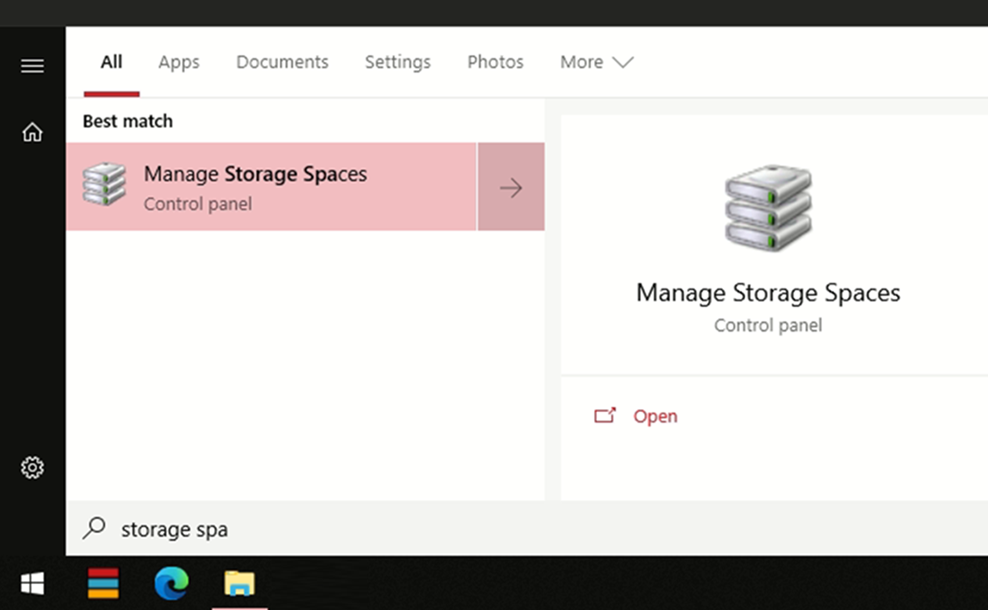
Step 5: On Windows Start, search for ‘Storage Space’. Then, click on ‘Manage Storage Spaces’ to launch.
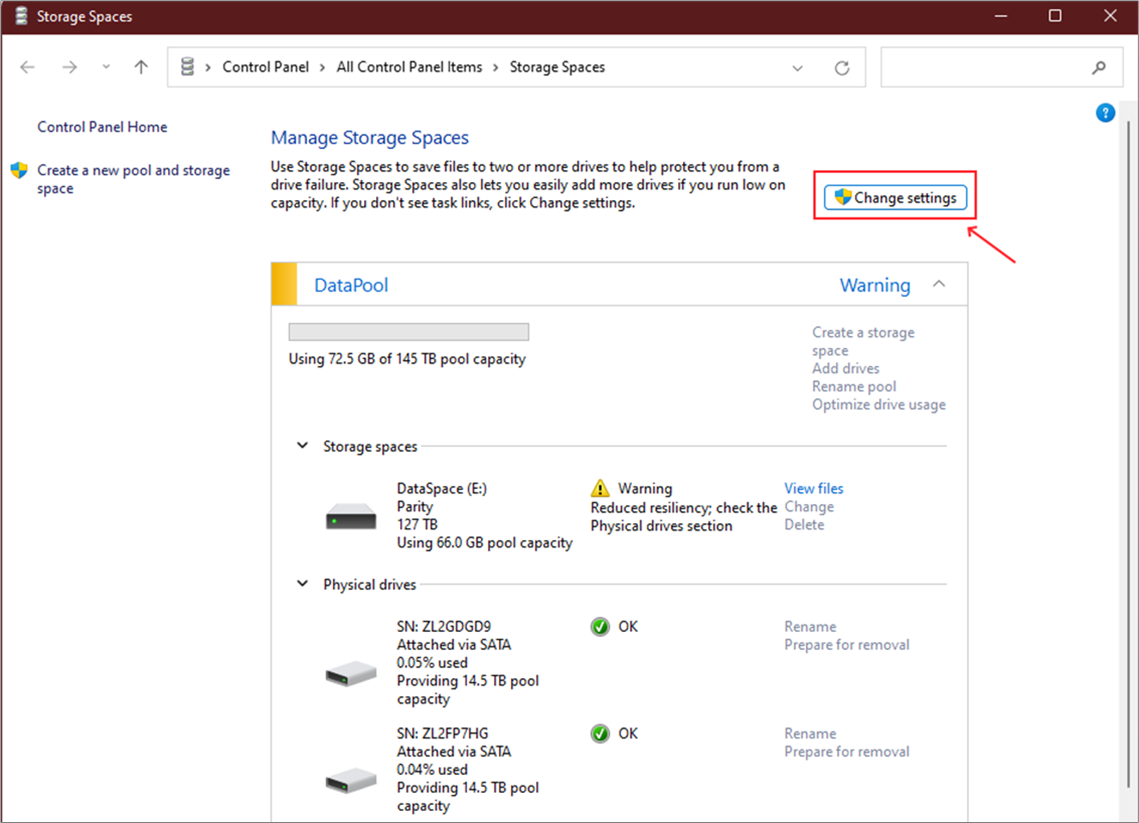
Step 6: Click ‘Change Settings’.
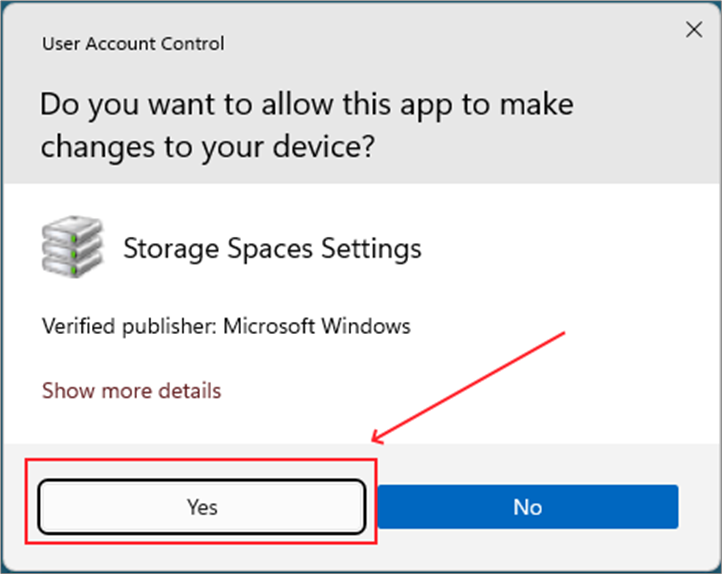
Step 7: If the following prompt appears, select ‘Yes’.
Step 8: Please ensure the new inserted HDD is ‘clean’, unformatted.
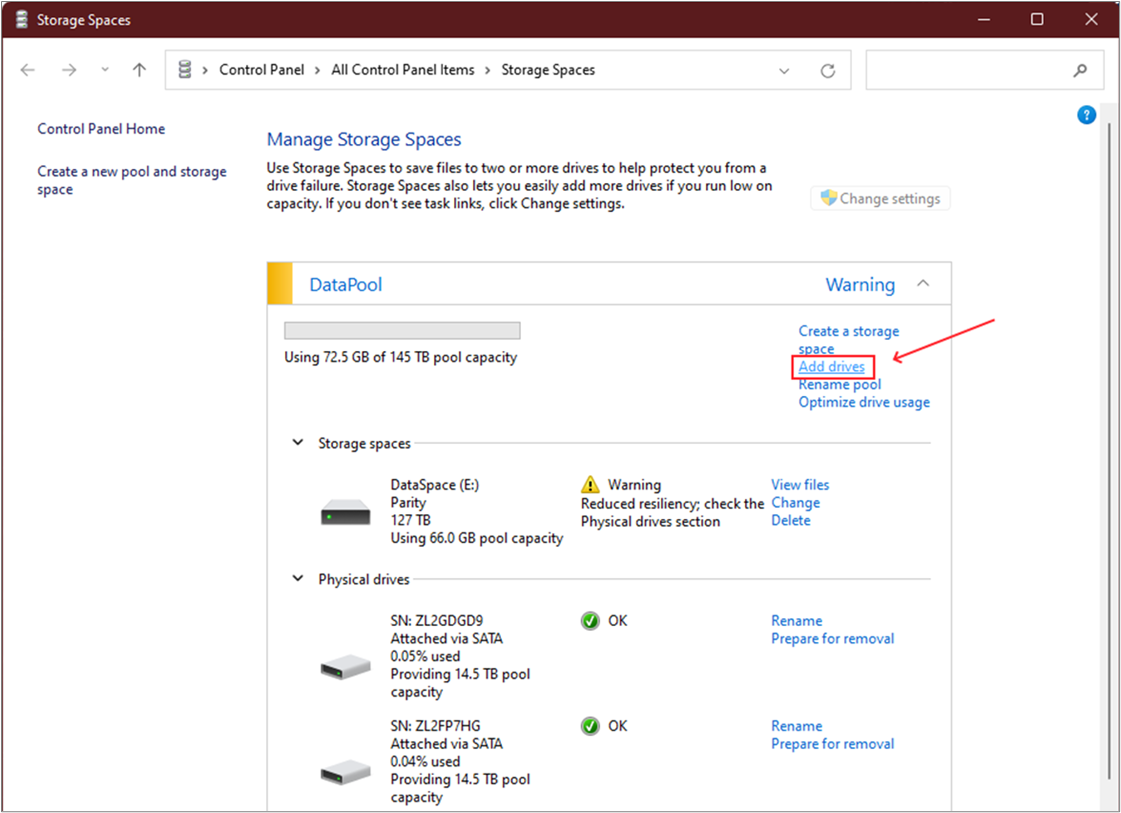
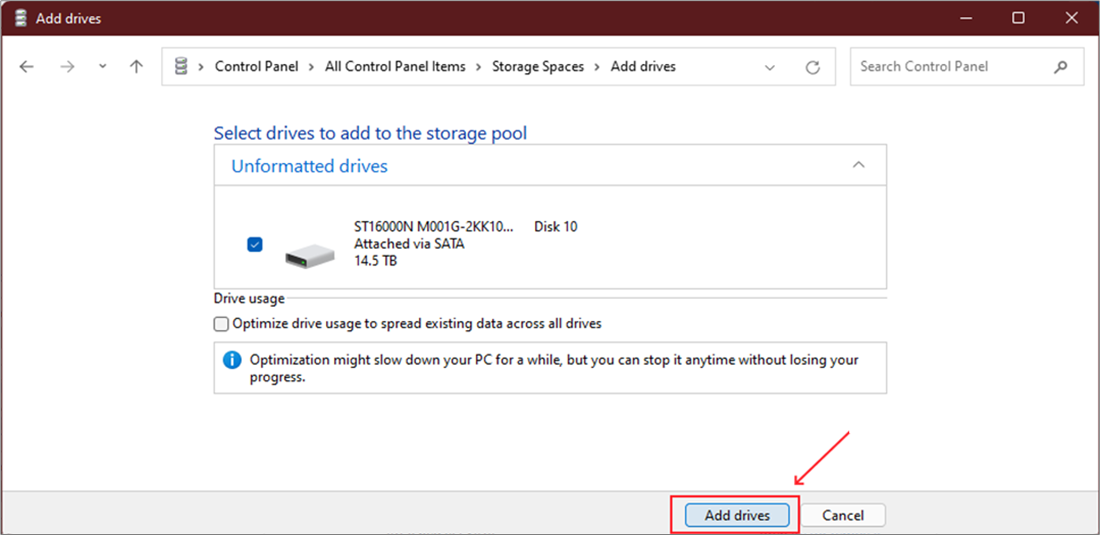
Step 9: Click ‘Add drives’.
Step 10: Check on the new replacement HDD to add. Click ‘Add drives’.
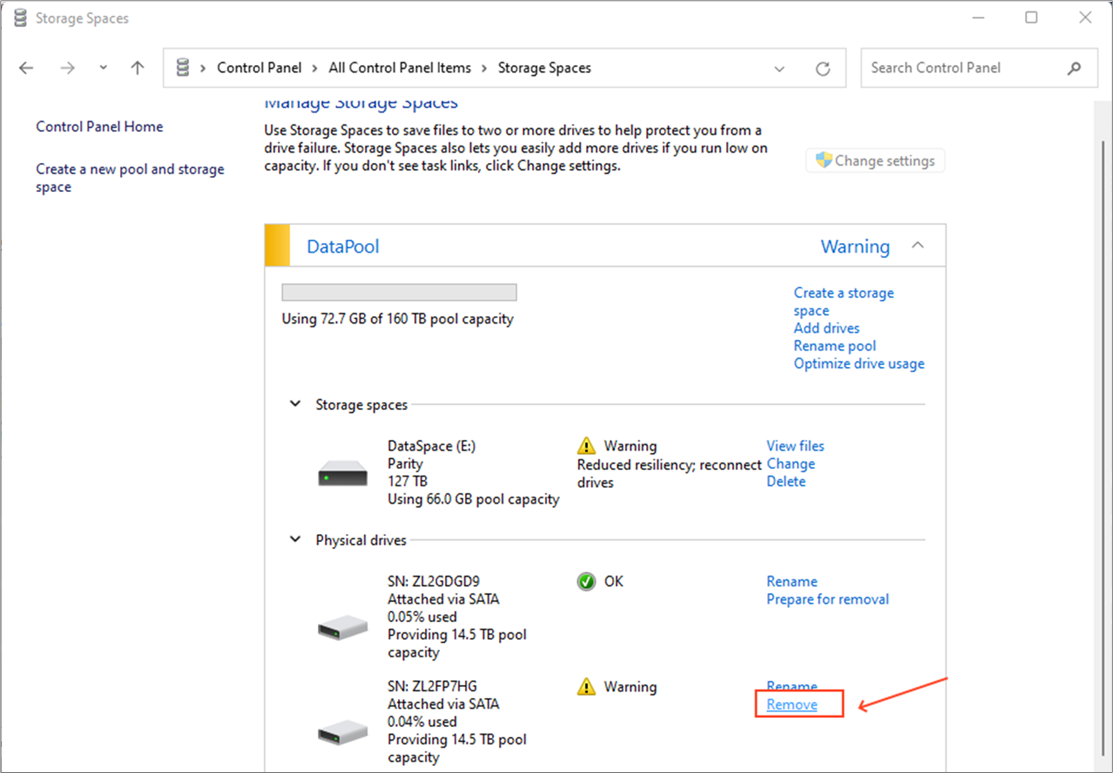
Step 11: From the list of Physical drives, identify from the HDD serial number and the ‘Warning’ status. Click on the ‘Remove’ option that corresponds to the HDD with ‘Warning’ status.
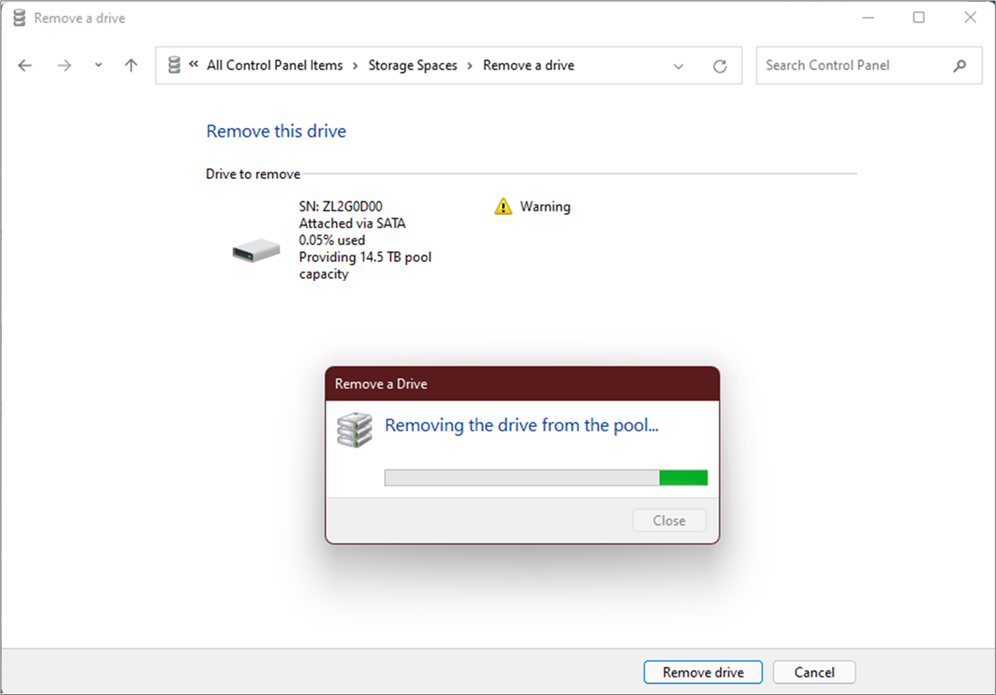
Step 12: The Repair process shall start immediately, and the following process window will be displayed on the screen.
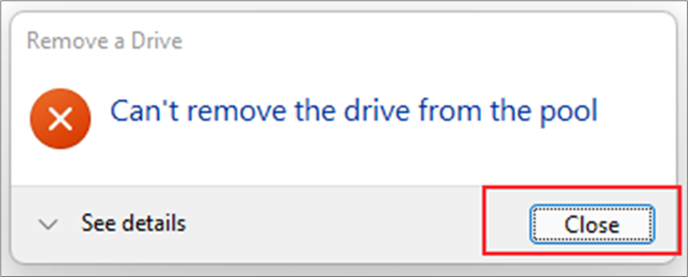
If the following error message appears, just click ‘Close’.
Step 13: Wait for the Repairing (X%) to finish:
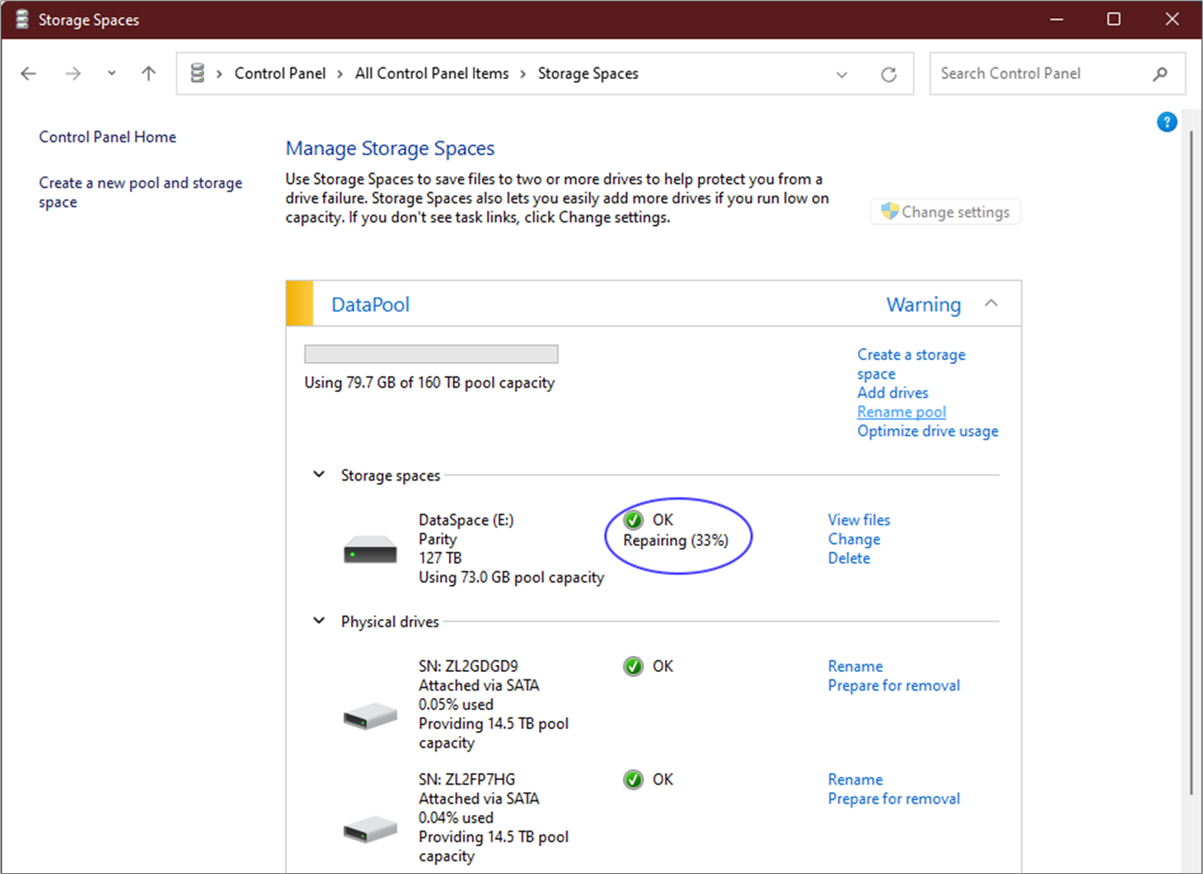
Note: The rate of repair is approximately 1TB per day. So, for example, if a 10TB HDD is being replaced, it would take approximately 10 days to complete the repair process.
Step 14: Upon completion of repair, click ‘Remove’.
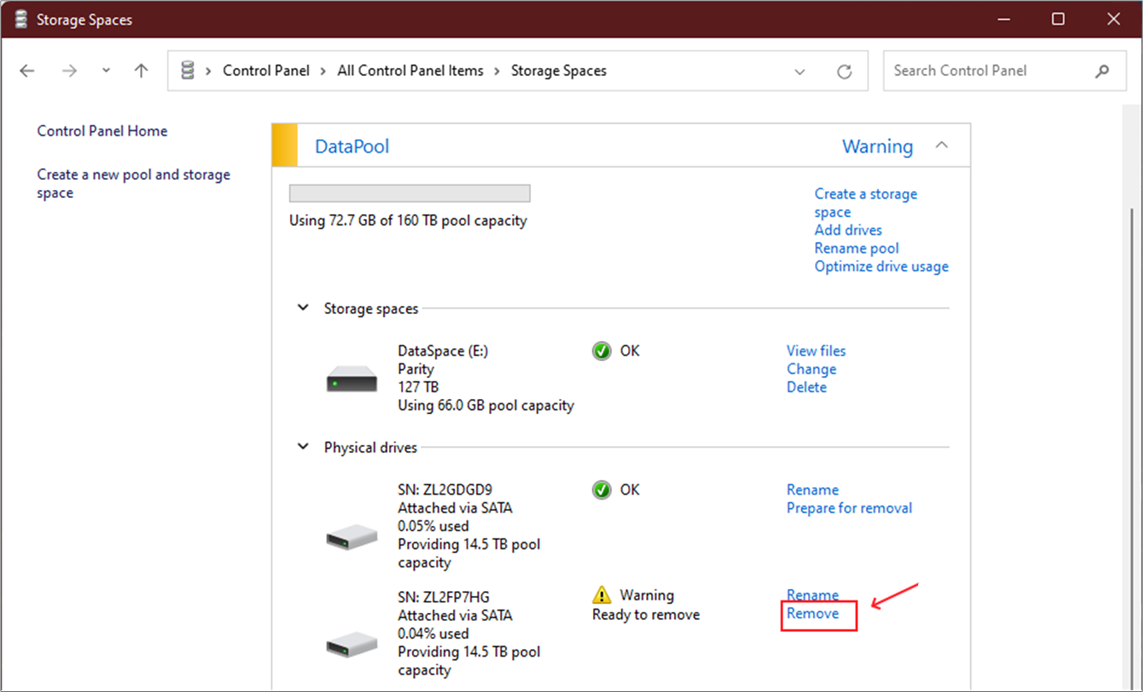
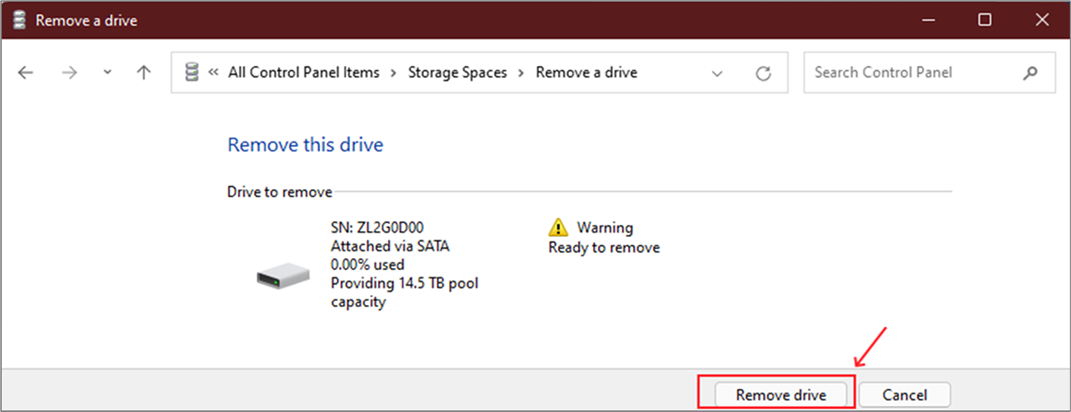
Step 15: Click ‘Remove drive’ to remove the HDD from RSS.
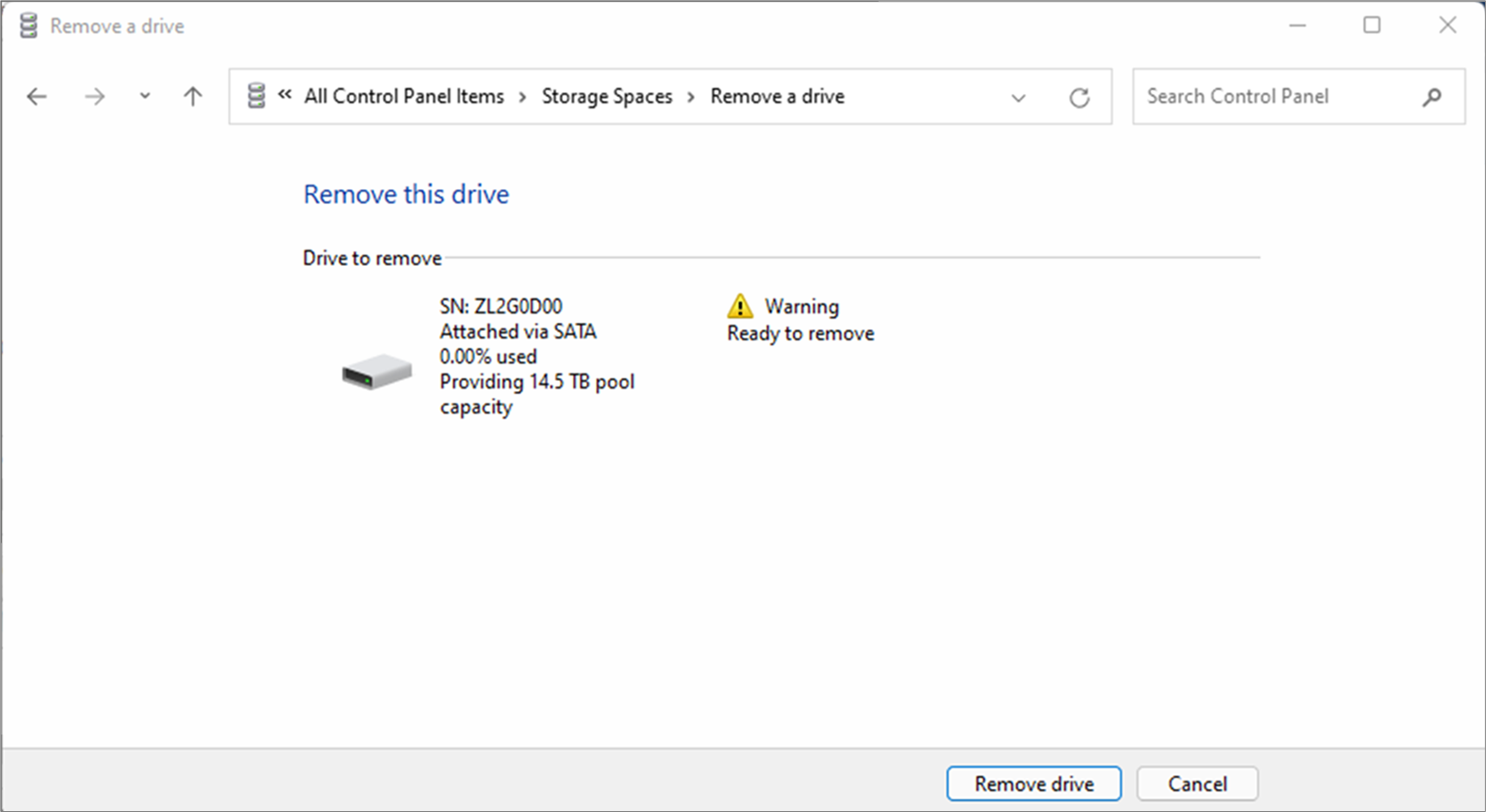
Step 16: Progress bar will appear to show the process of removing the HDD.
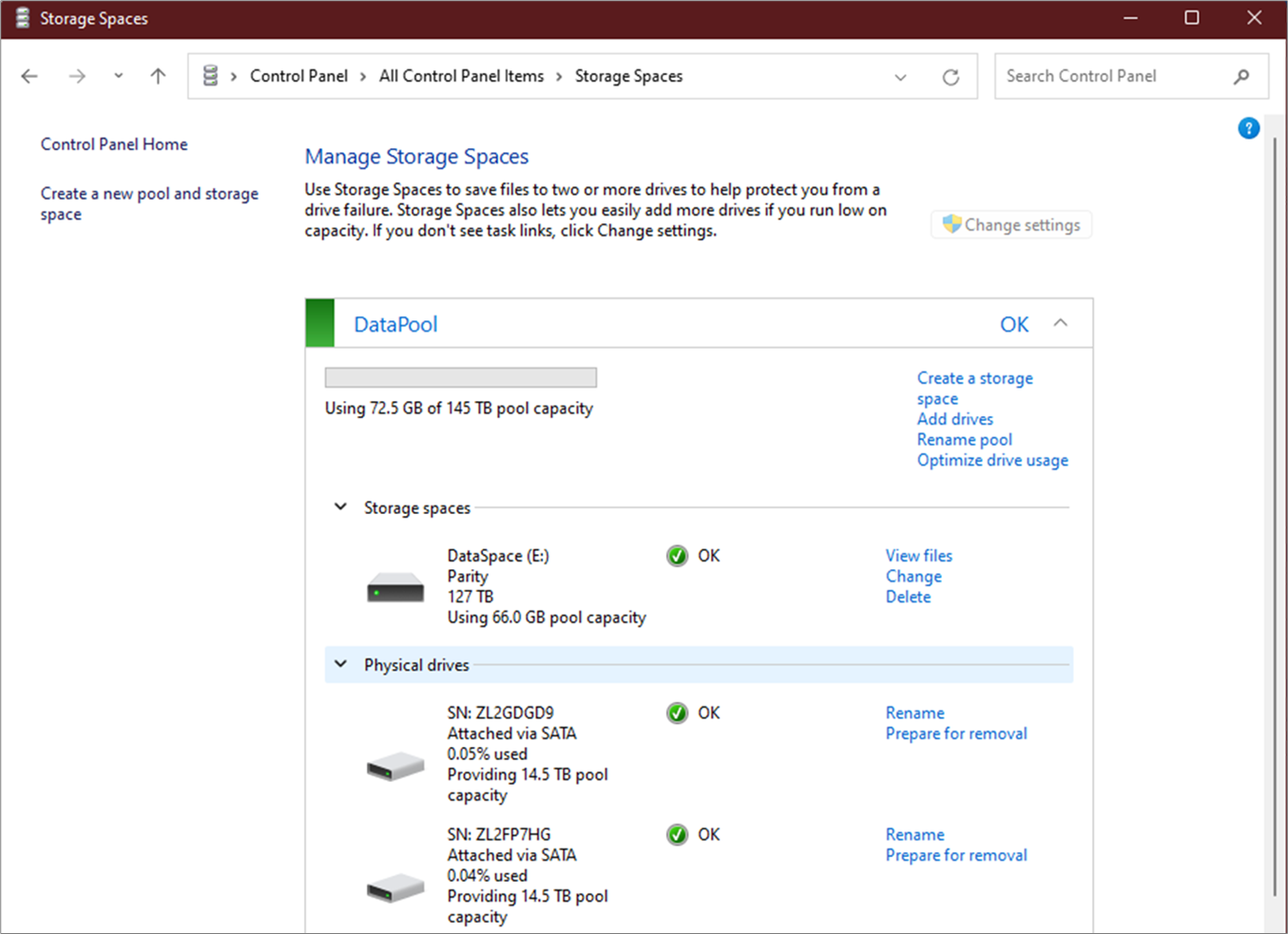
Step 17: The status of the DataPool will become GREEN colour. This indicates the HDD replacement and rebuild processes are completed successfully.
Was this article helpful?
That’s Great!
Thank you for your feedback
Sorry! We couldn't be helpful
Thank you for your feedback
Feedback sent
We appreciate your effort and will try to fix the article