Applicability:
- ecaOS 5 (Note: For ecaOS 6 Soft Reset procedure, refer to How-to Soft Reset (ecaOS 6) )
Description:
- Creates a complete backup of the SYSTEM C: partition
- Save layer will save current user's working layer
- This layer will contain all current configurations, such as video management software, windows networking setting, etc
Requirement:
- USB Security Key or ECA Access Code
| NOTE: Duration required for completion of Save Layer is approximately 30 to 40 minutes. While Save Layer is in progress, the system will not be usable. This incur system downtime. |

Procedure:
Step 1: Ensure you have the USB Security Key or ECA Access Code ready. Every ECA has its dedicated unique key which cannot be shared with other ECA. Refer to [Enrol Virtual Security Key for ECA Access Code]
Step 2: Launch System Manager from Taskbar and login using the One-Time Passcode or USB Security Key

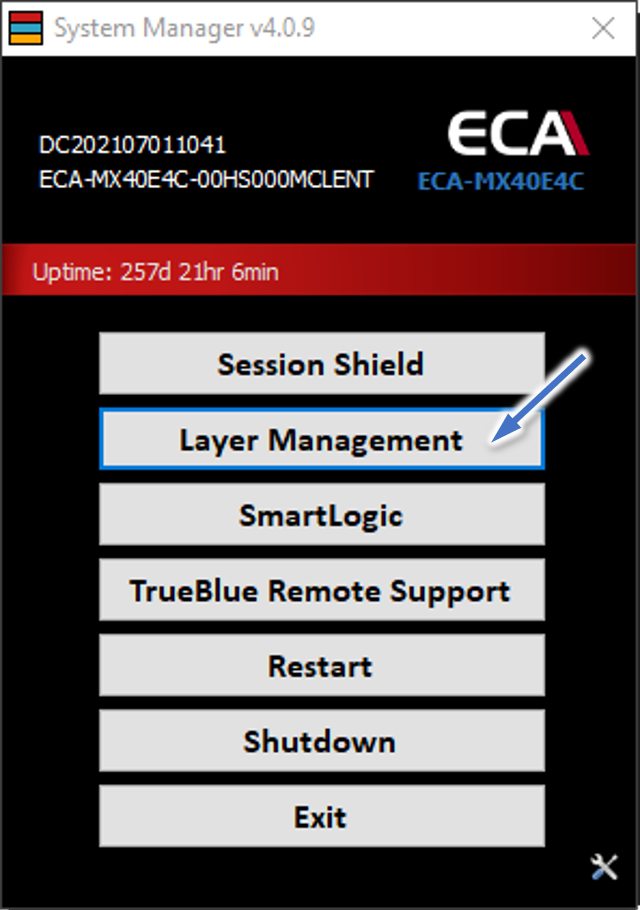
Step 3: In System Manager, go to Layer Management
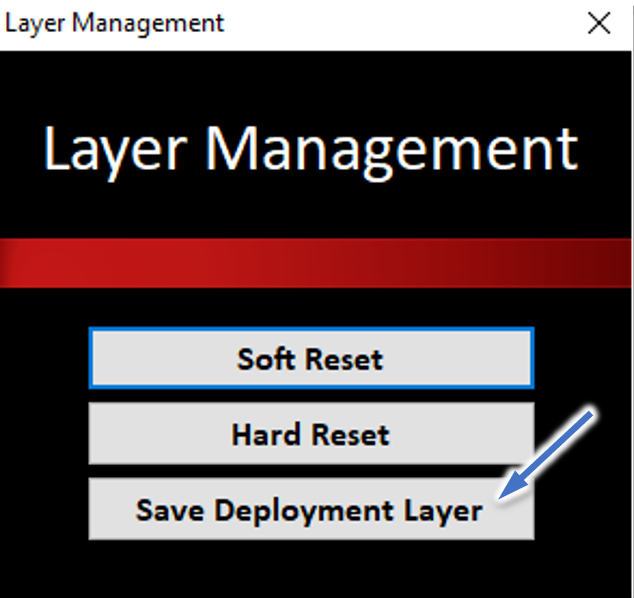
Step 4: Click 'Save Deployment Layer' button. (If the USB Security is plugged in, you may remove it now).
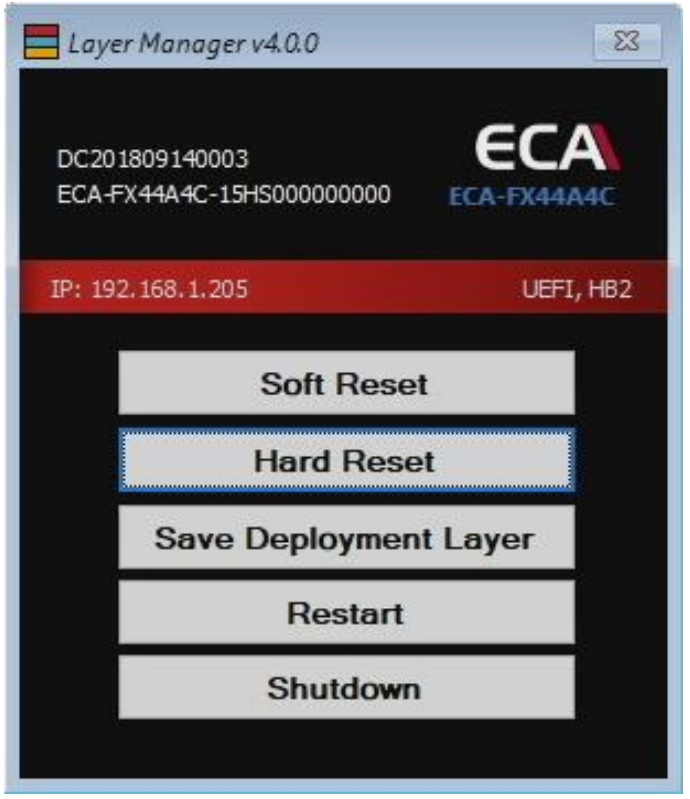
Step 5: ECA will reboot and boots into Layer Manager.
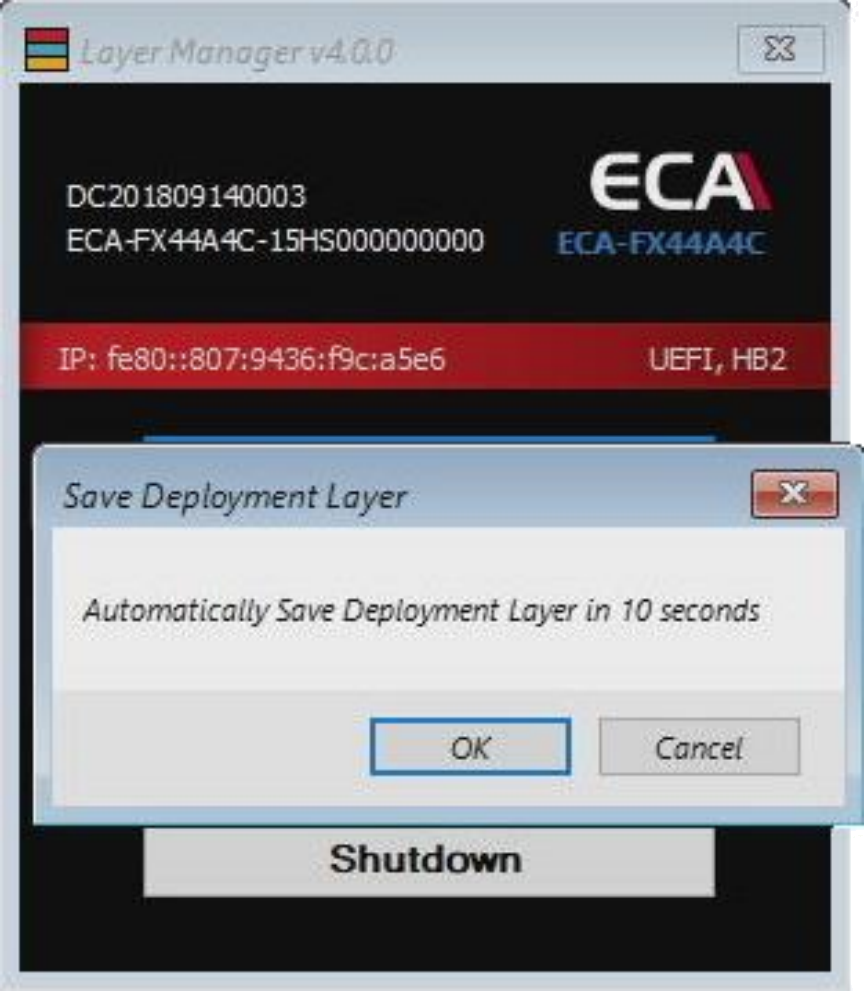
Step 6: Save Deployment Layer will begin after 10 seconds countdown.
Note: If you want to cancel the operation, you may click 'Cancel' within this 10 seconds. Then, the system will reboot into ecaOS.
Step 8: Save Deployment Layer progress is shown in percentage. The process will take about 30 to 40 minutes.
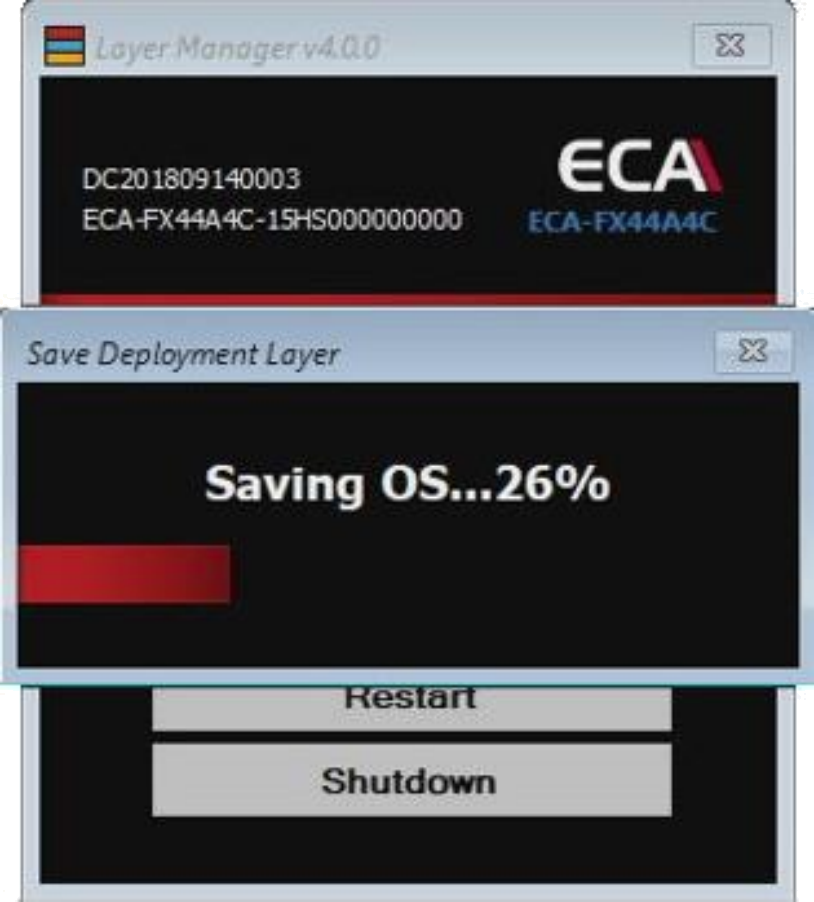
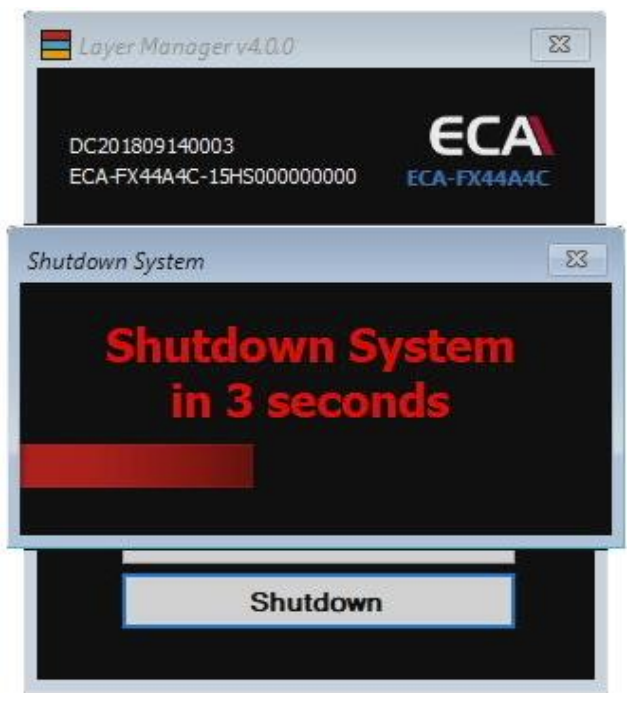
Step 9: ECA will automatically reboot into ecaOS after completion.
Was this article helpful?
That’s Great!
Thank you for your feedback
Sorry! We couldn't be helpful
Thank you for your feedback
Feedback sent
We appreciate your effort and will try to fix the article