Applicability:
- ecaOS 6.1 and above
Description:
- RSS helps to protect data and prevent data lost caused by drive failures.
- It is a technology in ECA and is conceptually similar to Redundant Array of Independent Disks (RAID), but implemented in software.
- Supports grouping of three or more drives into a Storage Pool and then uses capacity from the pool to create Storage Spaces.
- Two modes:
- RSS-S (Single parity, allow one drive fail)
- RSS-D (Dual Parity, allow two drives fail)
- Manageable options in RSS:
- Create Storage Pool
- Repair Storage Pool
- Extend Storage Pool
- Delete Storage Pool
Create Storage Pool
Step 1: Access ecaOS DashBoard (Refer to guide: Access ecaOS DashBoard)
Step 2: Go to Management ▶ RSS.
Step 3: Ensure there are at least three (3) Hard Disk Drives in Non-Member Physical Disks.
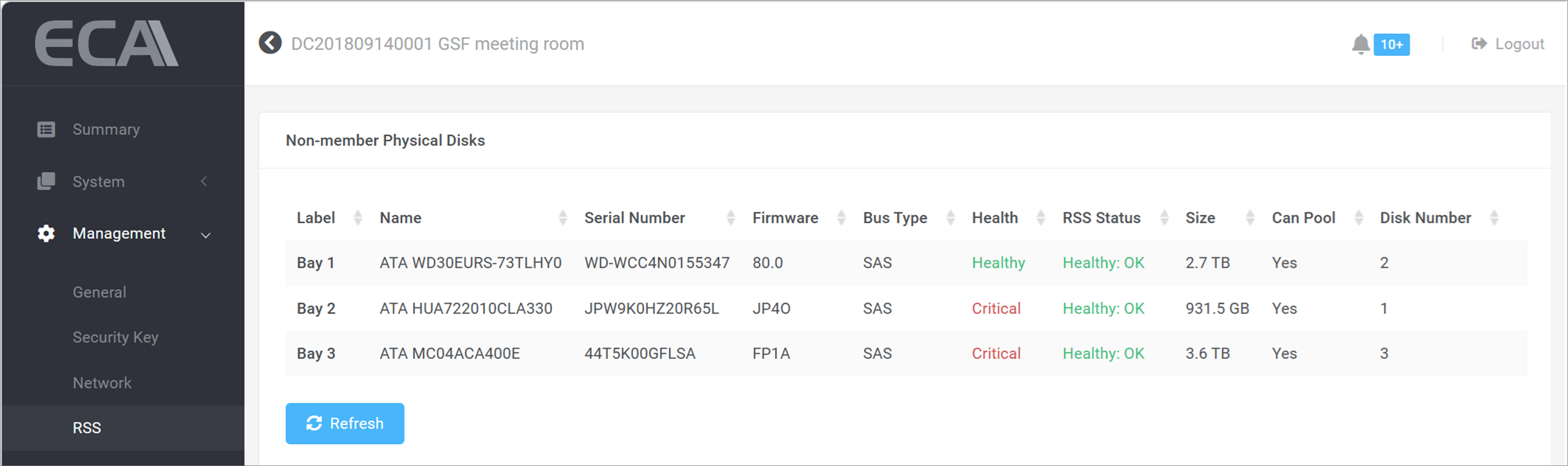
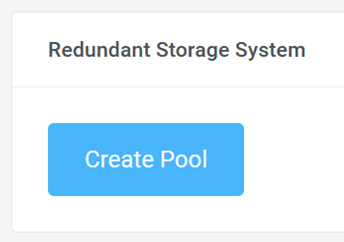
Step 4: Click Create Pool.
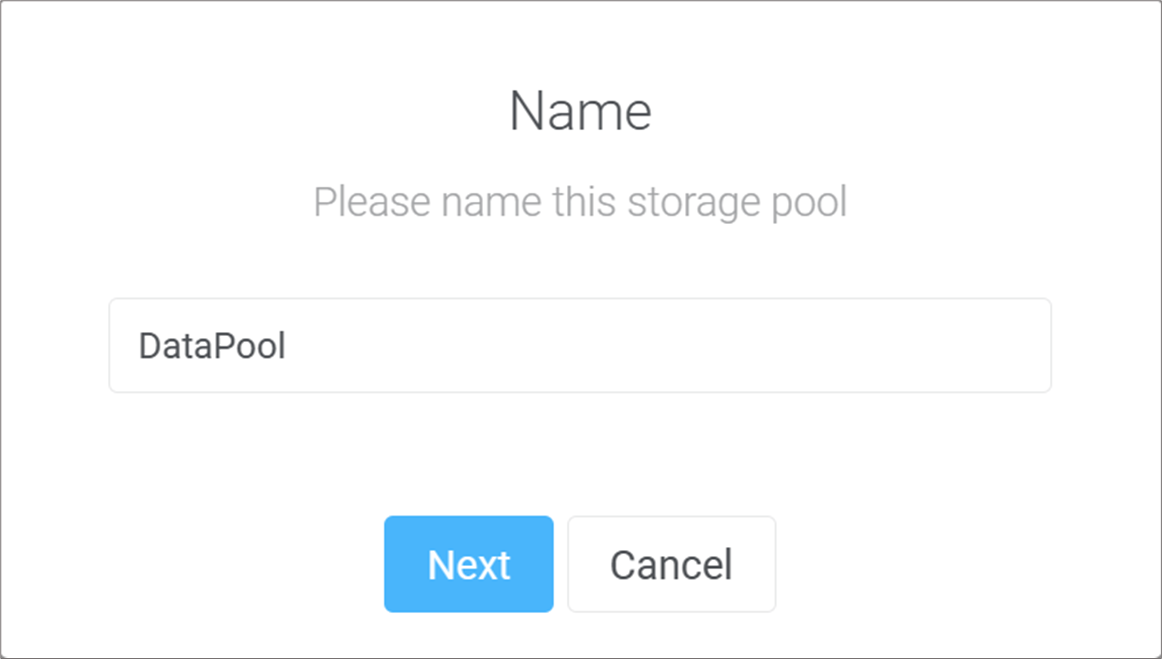
Step 5: Insert a name for the storage pool (default: DataPool), then click Next.
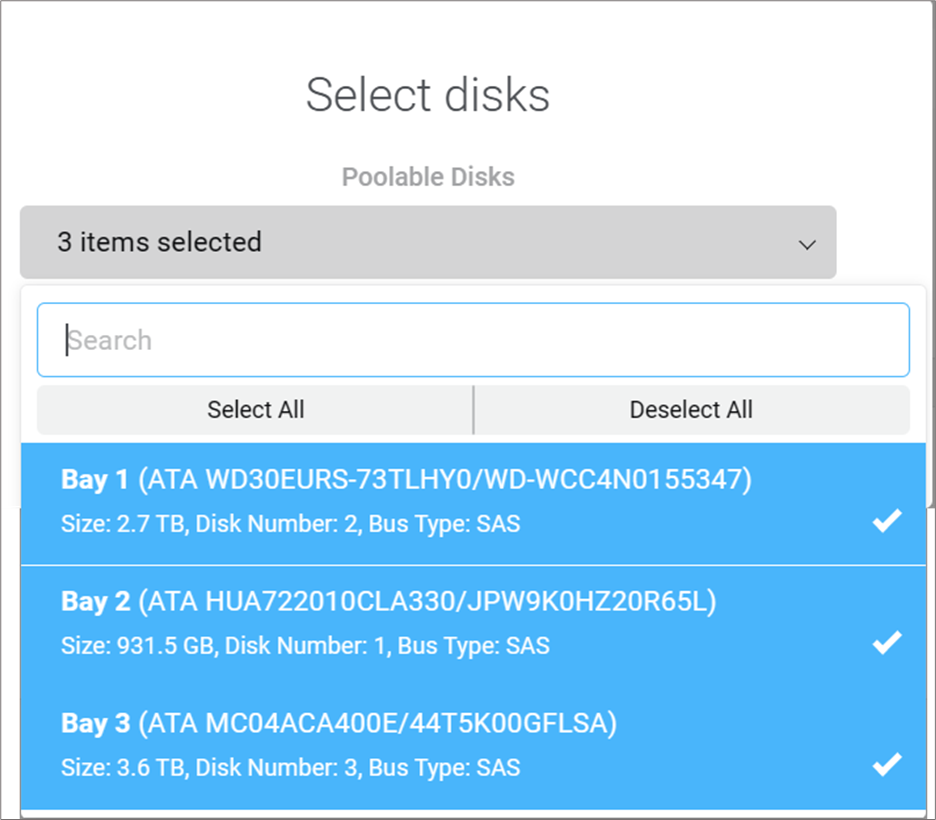
Step 6: From the poolable disks, select disks that you want to use for forming the Storage Pool. Then, press Next.
Step 7: Provide a name for the Virtual Disk (default: DataSpace), then click Advanced tab.
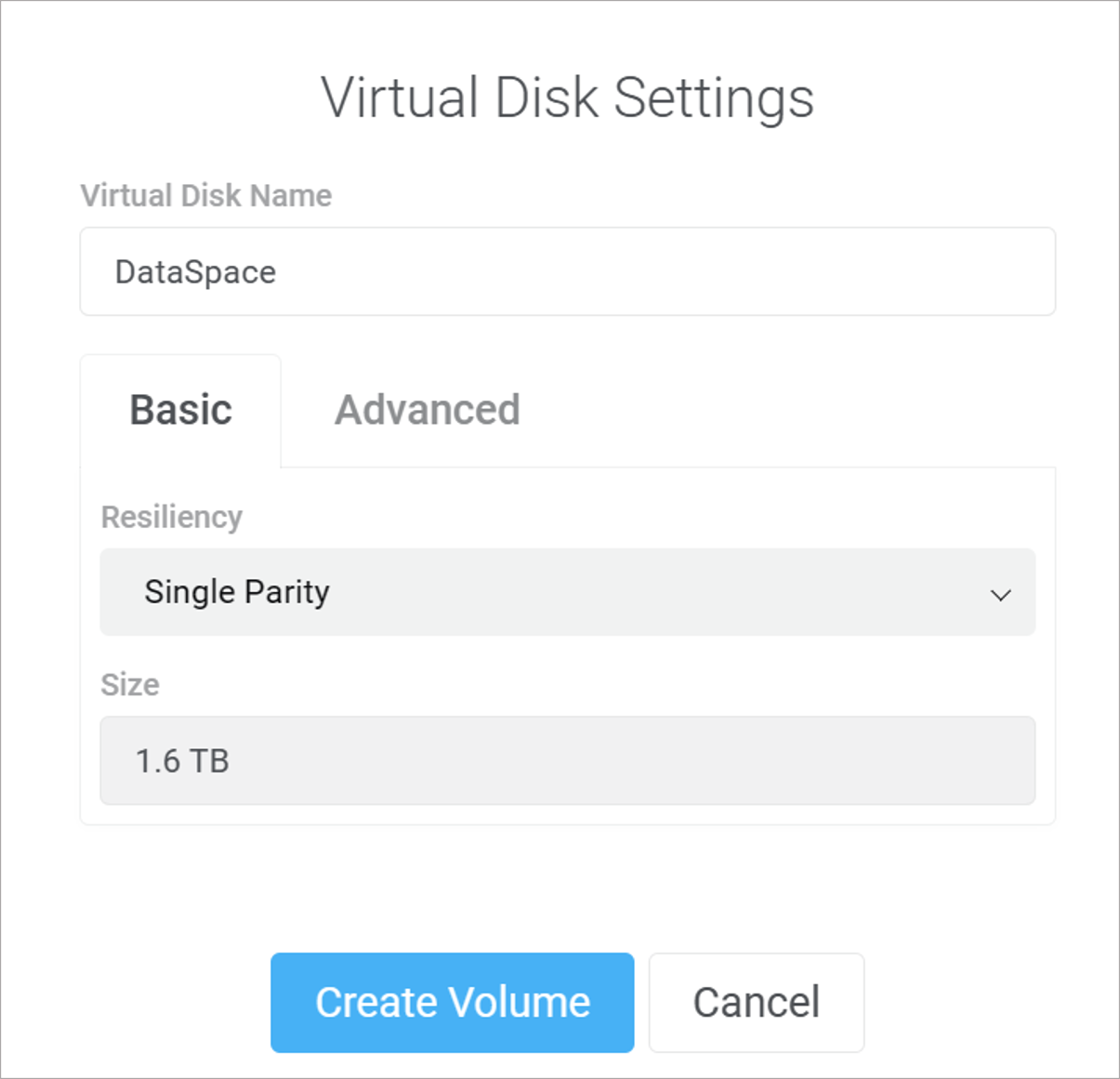
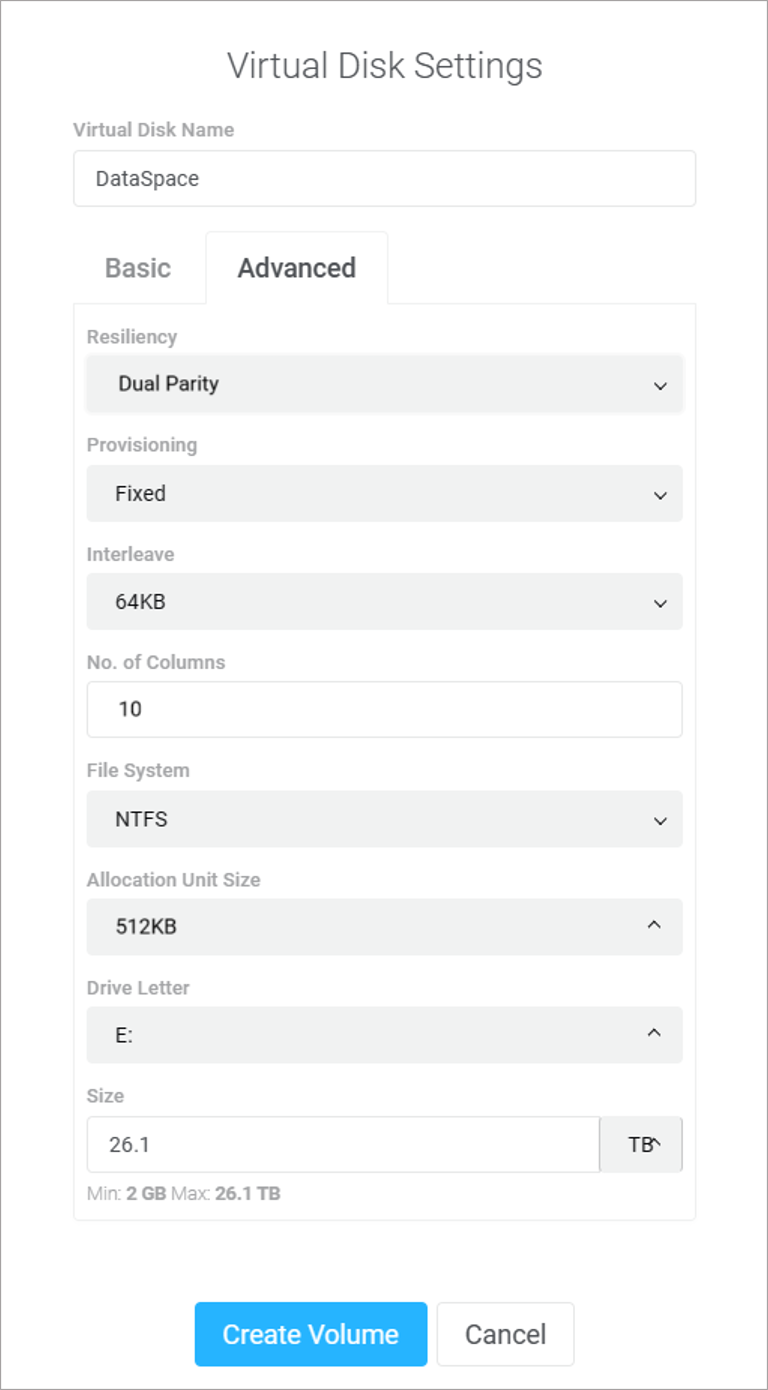
Subjected to total quantity of HDD you are using, apply the following settings accordingly. Then, click Create Volume.
| HDD Quantity | Resiliency | Provisioning | Interleave | No. Of columns | Allocation Unit Size |
| 3 to 4 | Single Parity | Fixed | 64KB | 3 | 128KB |
| 5 to 8 | Single Parity | Fixed | 64KB | 5 | 256KB |
| 6 to 9 | Dual Parity | Fixed | 64KB | 6 | 256KB |
| 10 to 15 | Dual Parity | Fixed | 64KB | 10 | 512KB |
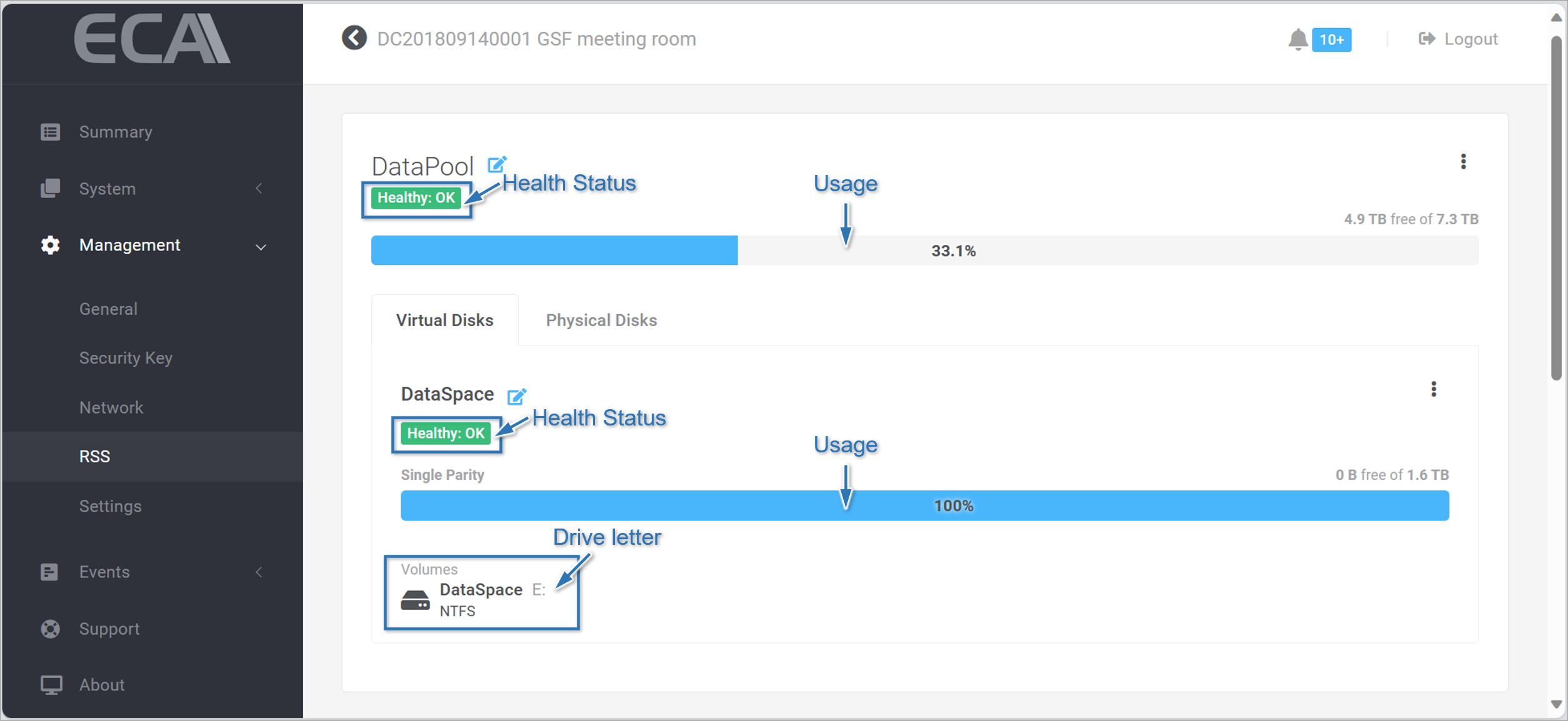
Step 8: The creation of Datapool and DataSpace shall complete instantaneously. Their status are displayed in the RSS, showing the Health status and percentagle of usage. The Drive letter for the DataSpace is auto-assigned, default start with letter 'E'.
Repair Storage Pool
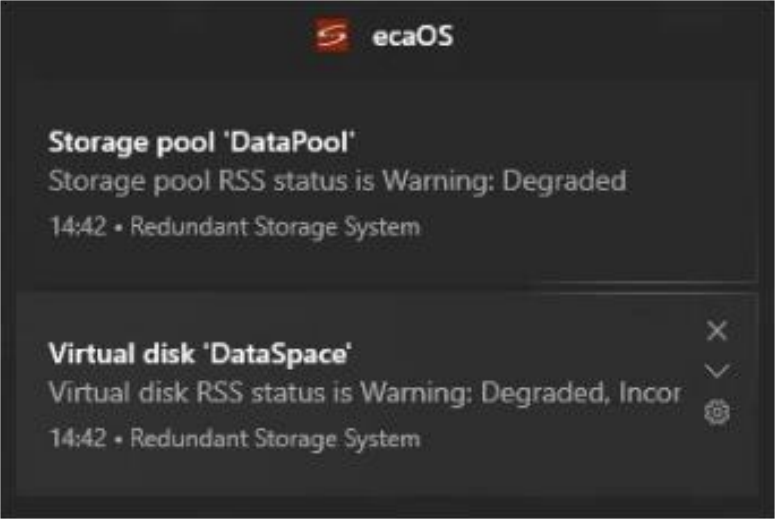
In the event of of HDD failure, ecaOS will notify via:
- Desktop Notification Centre
- Email Notification
Step 1: Identify the faulty HDD bay number from ecaOS Desktop Notification Centre or Email Notification
Step 2: Access ecaOS DashBoard (Refer to guide: Access ecaOS DashBoard)
Step 3: To determine which member disk(s) is the cause of the warning, go to Management ▶ RSS. Click on 'Physical Disks' tab in the DataPool. In most cases, the faulty disk will show 'Warning: Lost Communication" in its RSS Status.
Step 4: Unplug the faulty disk and then insert a new unformatted replacement disk into the ECA.
Step 5: Navigate to System ▶ Disk Guard to acknowledge the new replaced disk.
Step 6: Go to Management ▶ RSS, the new replacement disk will be listed under Non-member Physical Disks list
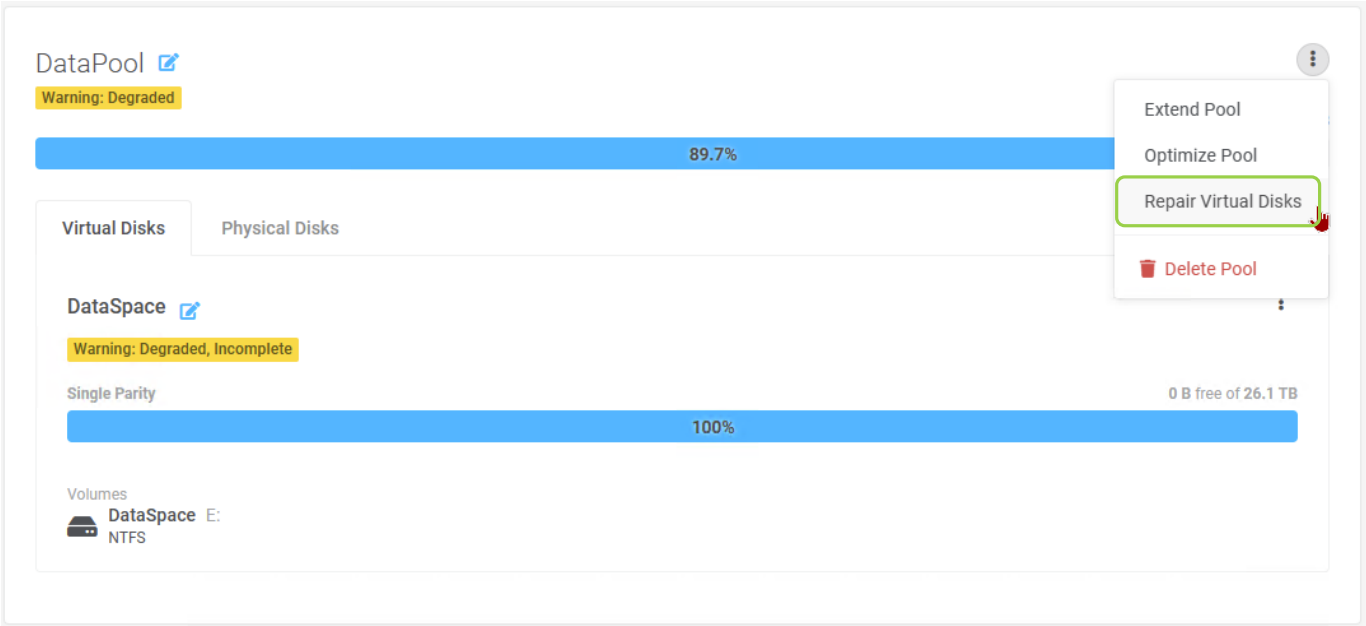
Step 7: Select 'Repair Virtual Disks'.
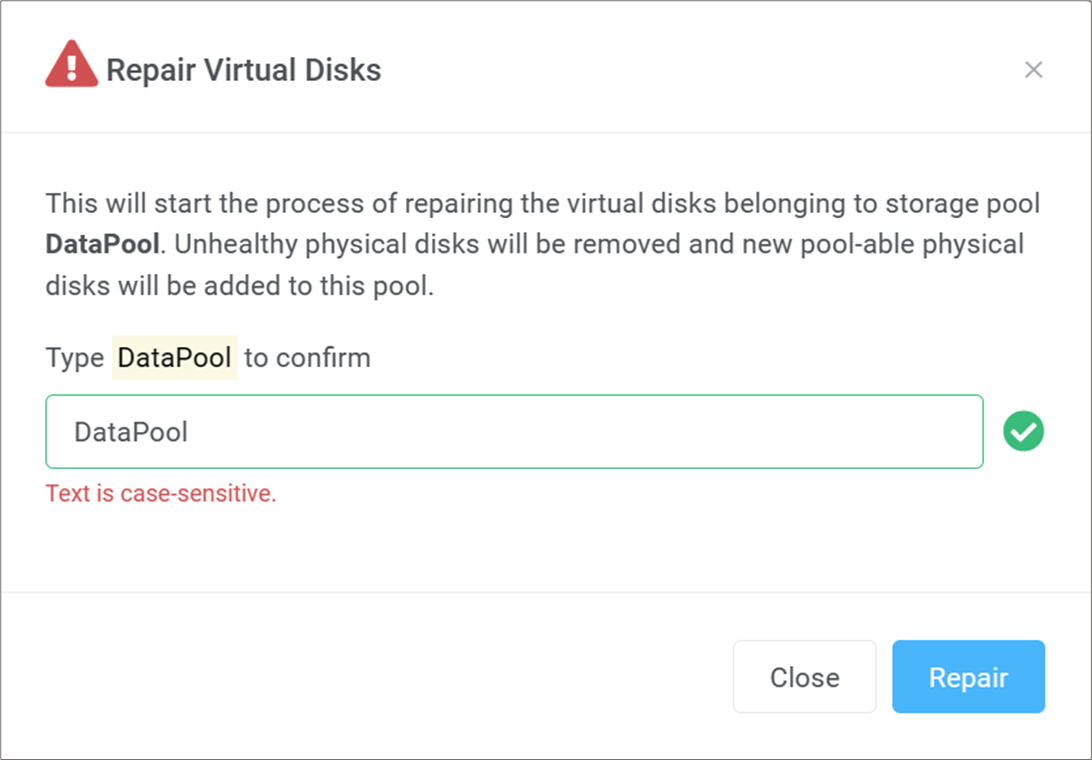
Step 8: Enter the storage pool's name as shown to confirm. Then, click Repair.
Step 9: Wait for the Repairing process to complete. Time required subjects to data size and disk activity. Average speed is 1 to 2 Terabytes per day.
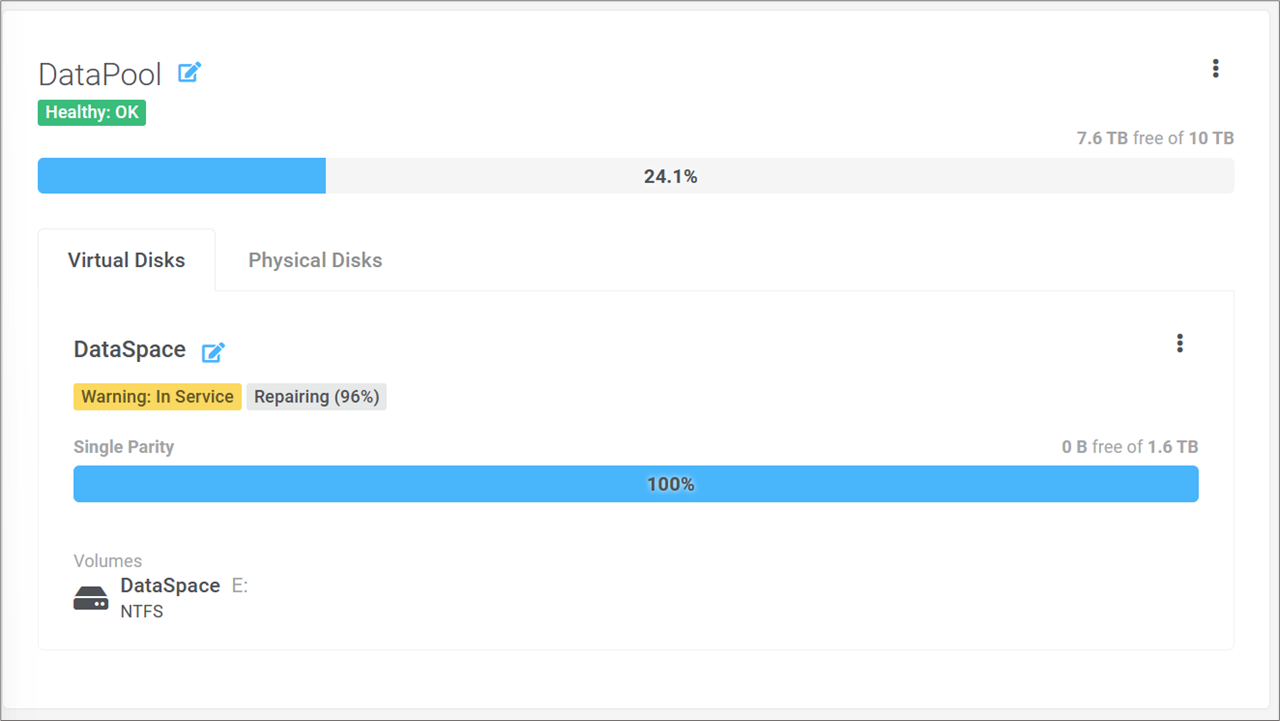
Step 10: After the repairing process is completed, the health of the storage pool and virtual disk will become 'Health: OK'.
Extend Storage Pool
The Storage Pool capacity can be extended by adding new disk(s).
Step 1: Access ecaOS DashBoard (Refer to guide: Access ecaOS DashBoard)
Step 2: Go to Management ▶ RSS.
Step 3: Insert a new unformatted disk into the ECA. It will appear under the Non-member Physical Disks list.
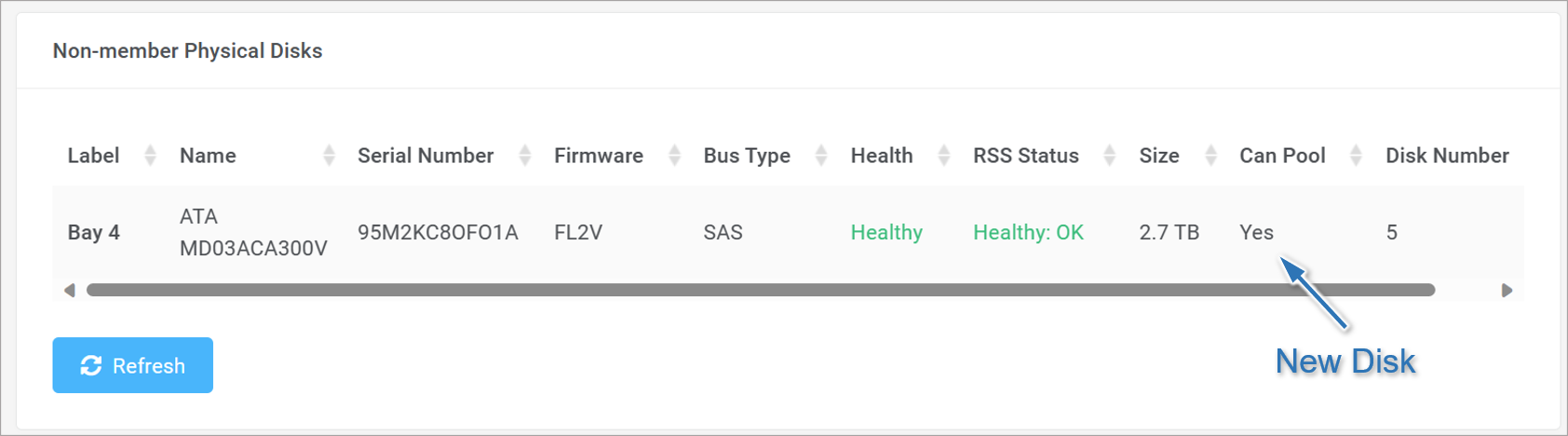
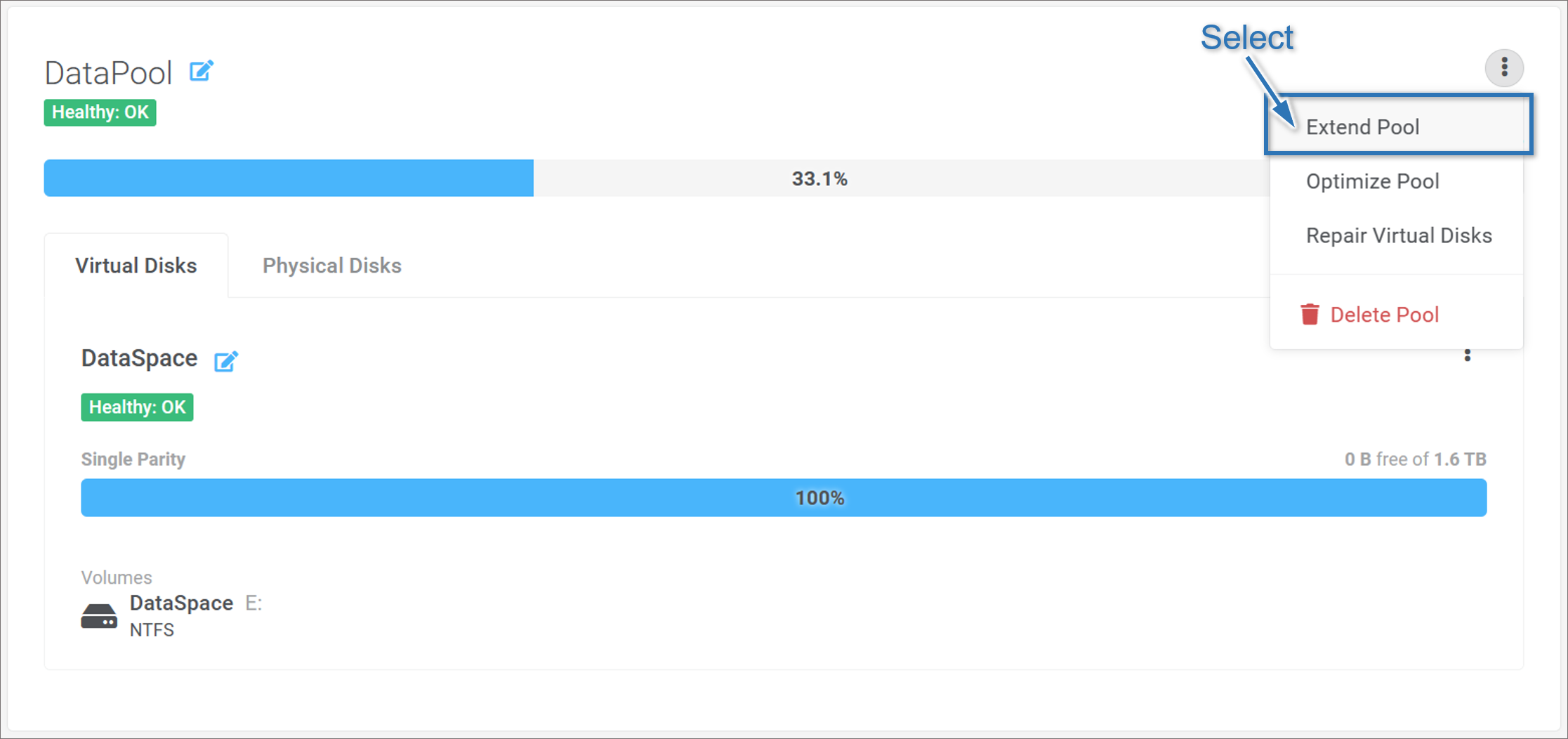
Step 4: Select Extend Pool.
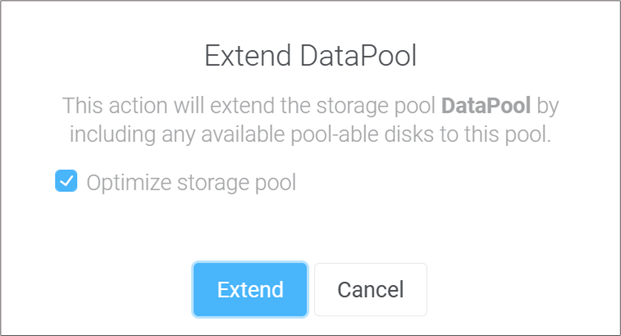
Step 5: Select Optimize storage pool. Then, press Extend
Step 6: Wait for the optimizing process to complete

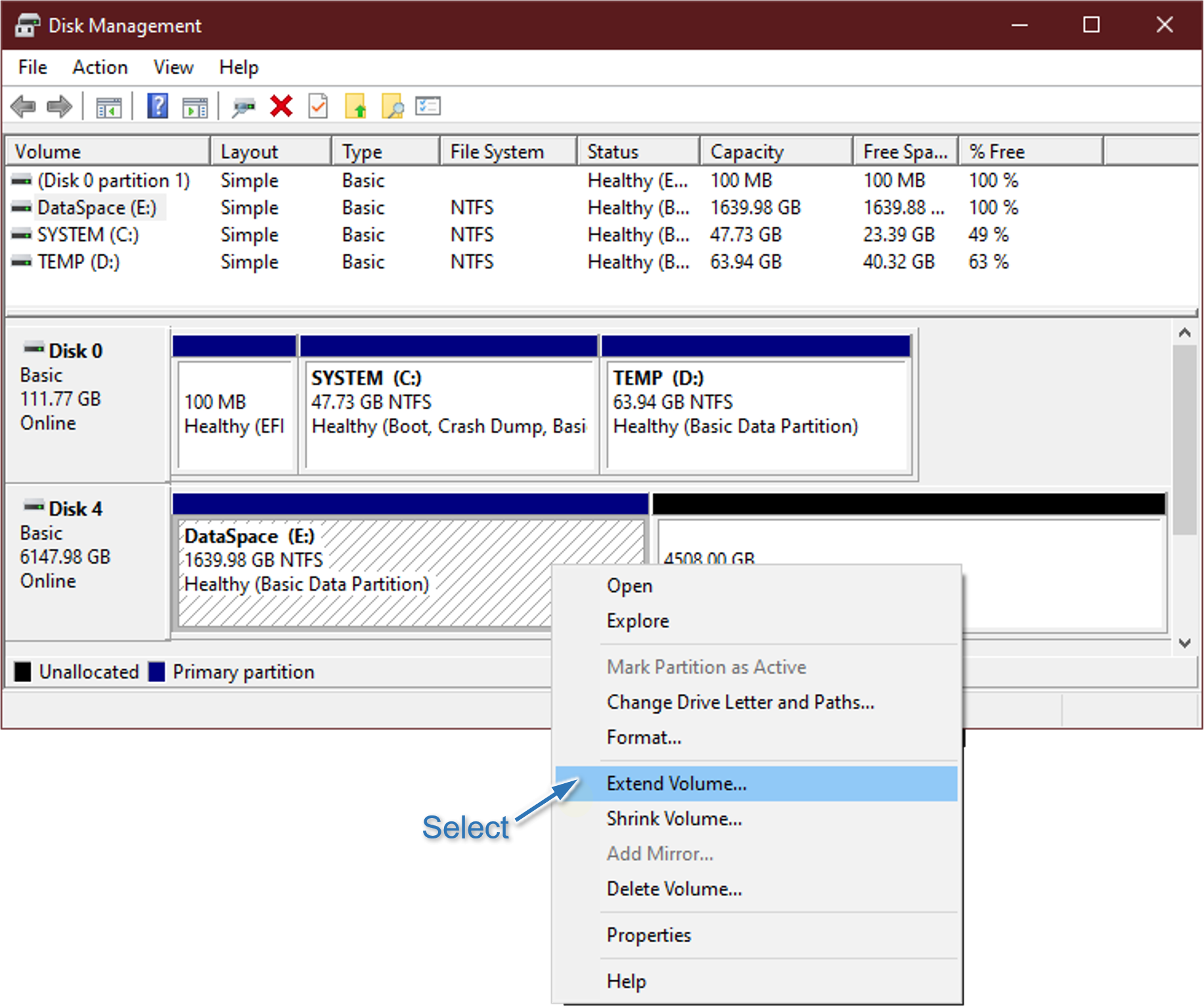
Step 7: After optimization is completed, go to Windows Disk Managament to extend volume. Select Extend Volume...
Delete Storage Pool
Step 1: Access ecaOS DashBoard (Refer to guide: Access ecaOS DashBoard)
Step 2: Go to Management ▶ RSS.
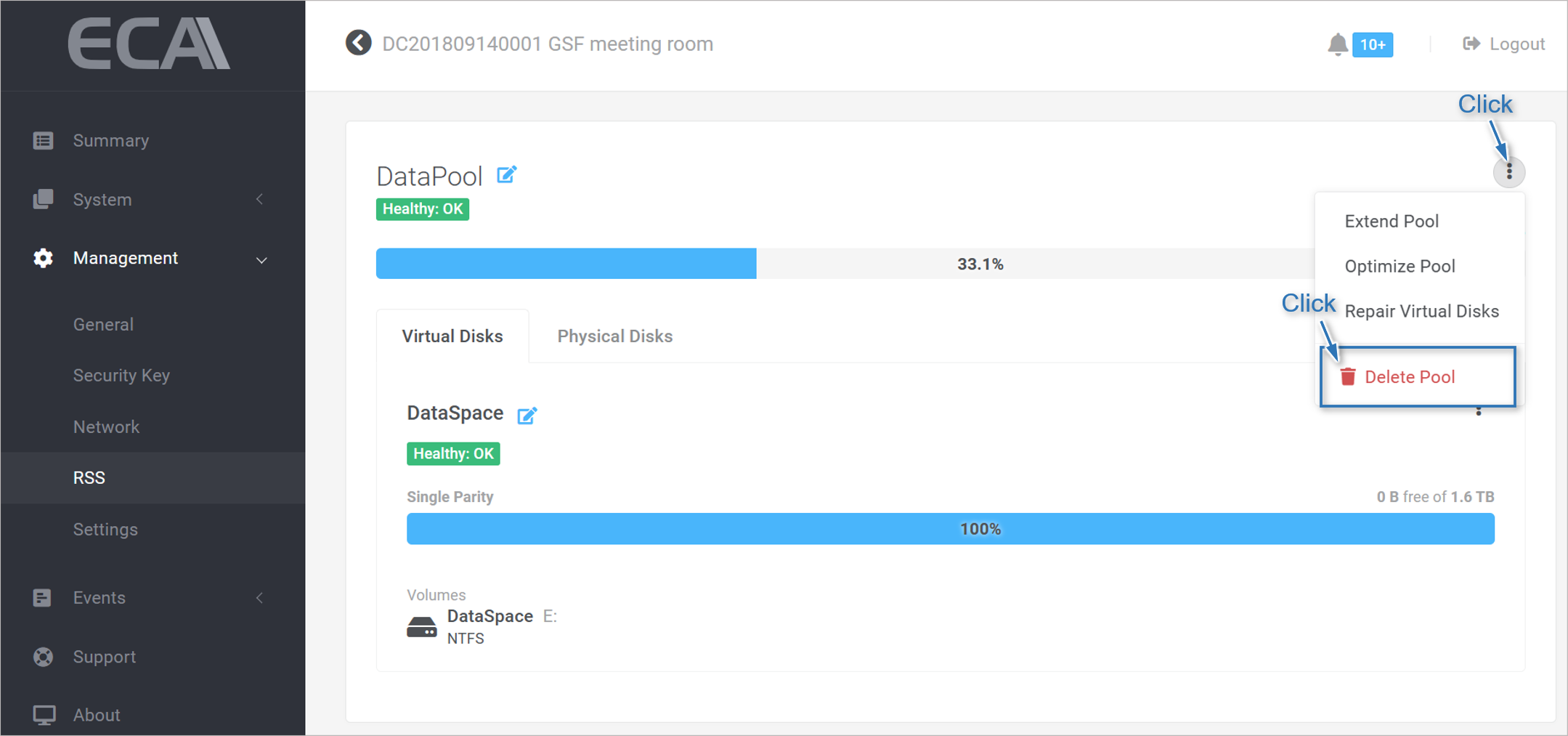
Step 3: Click Delete Pool.
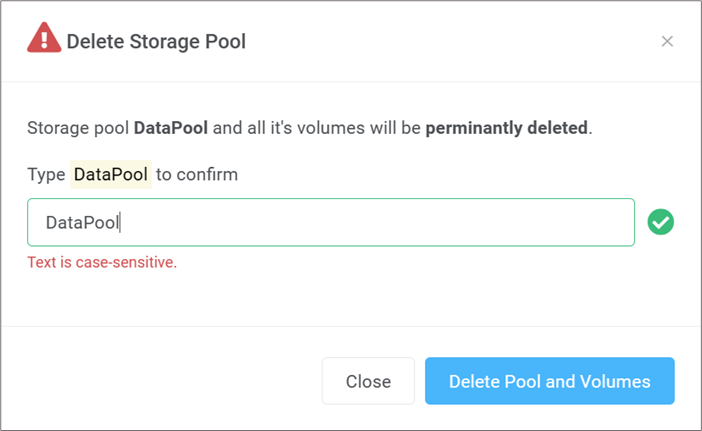
Step 4: Enter StoragePool name as shown, then press Delete Pool and Volumes.
Was this article helpful?
That’s Great!
Thank you for your feedback
Sorry! We couldn't be helpful
Thank you for your feedback
Feedback sent
We appreciate your effort and will try to fix the article