Applicability:
- ecaOS 6
Description:
- Identify Problematic Disk
- Replacing the Hard Disk Drive
- Initialize or format replaced drive in ecaOS
Identify Problematic Disk
Step 1: Access ecaOS DashBoard (Refer to guide: Access ecaOS DashBoard)
Step 2: Go to System ▶ Disk Health
Step 3: Overall information about the disks is displayed, such as model, serial number, and capacity
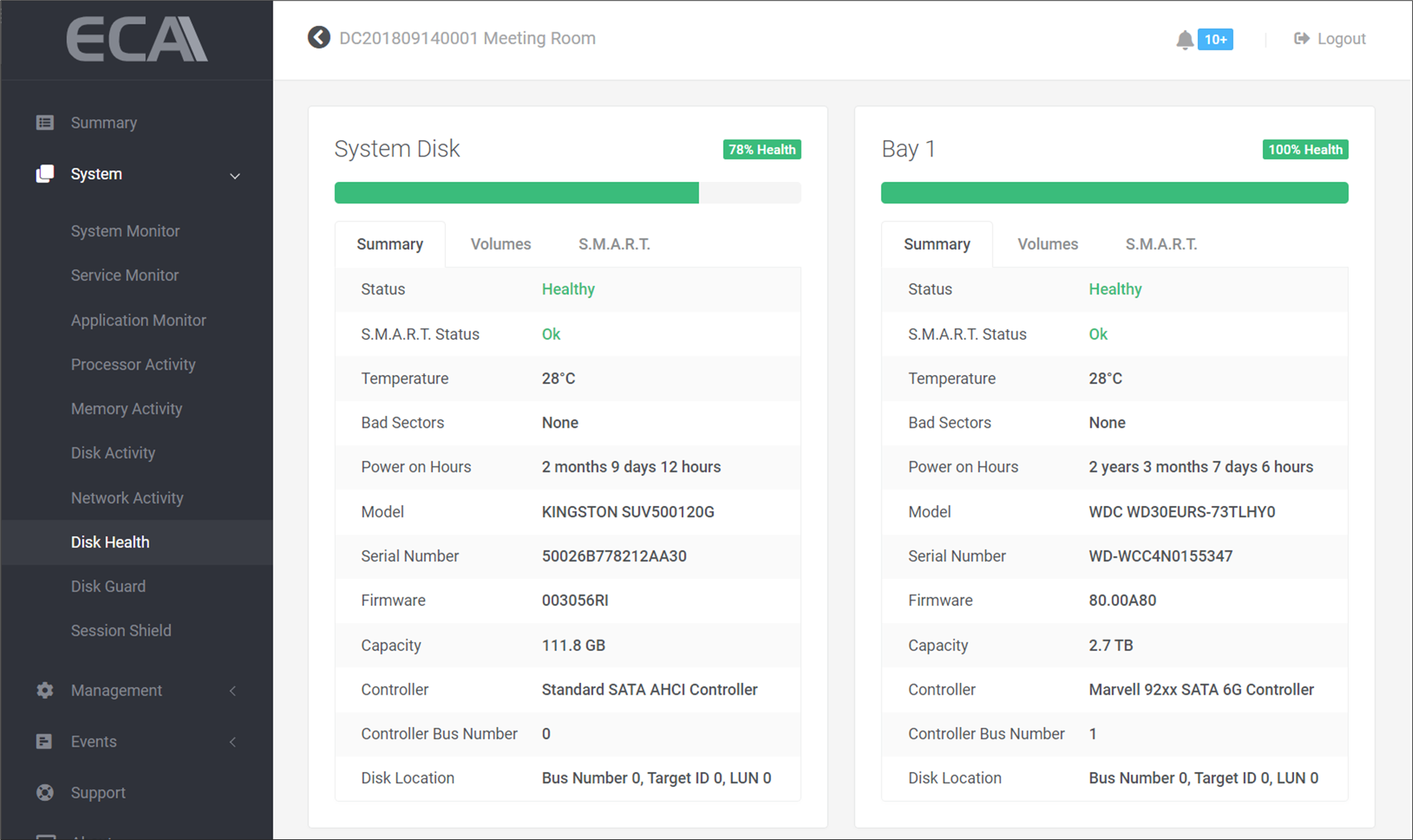
Step 4: Identify the health status of all HDD bay numbers.
| Status | Meaning | Example | Recommended actions |
Green Health  | Healthy. Health is within 71% to 100% | 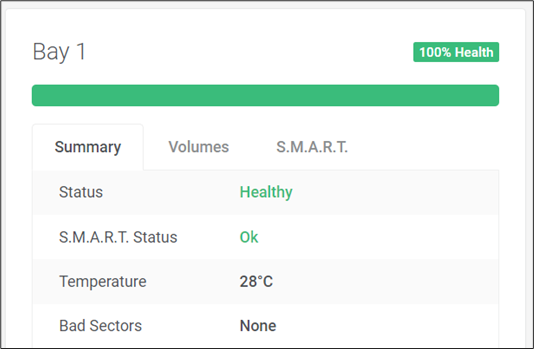 | None. |
Yellow Health | Warning. Health is within 51% to 70% Data may still be fully intact. | 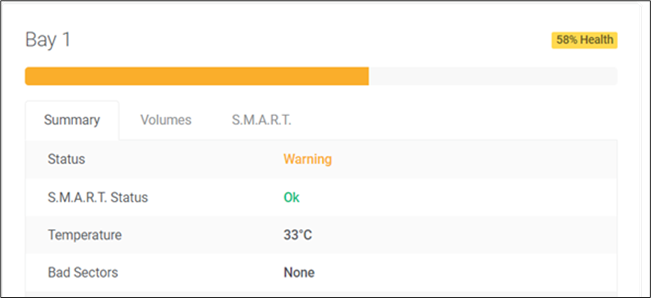 | Replace the disk as soon as possible. |
Red Health  | Critical. Health is within 0% to 50% Highly potential some data not readable. | 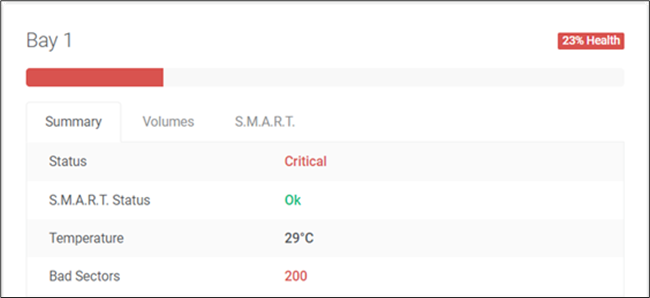 | Replace the disk immediately. |
Replacing the Hard Disk Drive
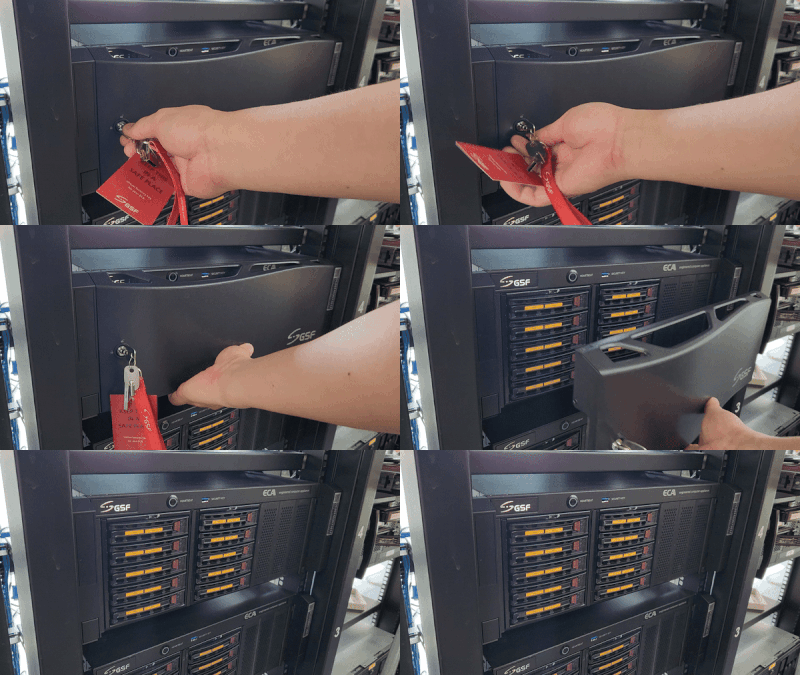
Step 1: After identifying the HDD bay number, unlock and remove the front panel of the ECA to access the front removable Hard Disk Drives.
Step 2: Remove the problematic disk you have identified in Identify Problematic Disks procedure. Double check the serial number of the disk (usually on the disk's label), and make sure you have removed the correct HDD.
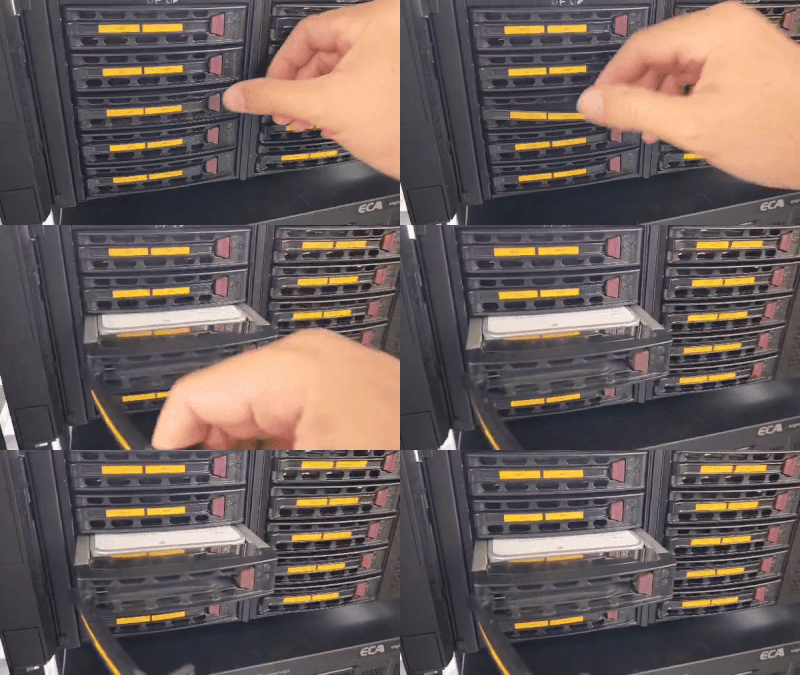
To remove the disk, press the red latch, and pull the handle
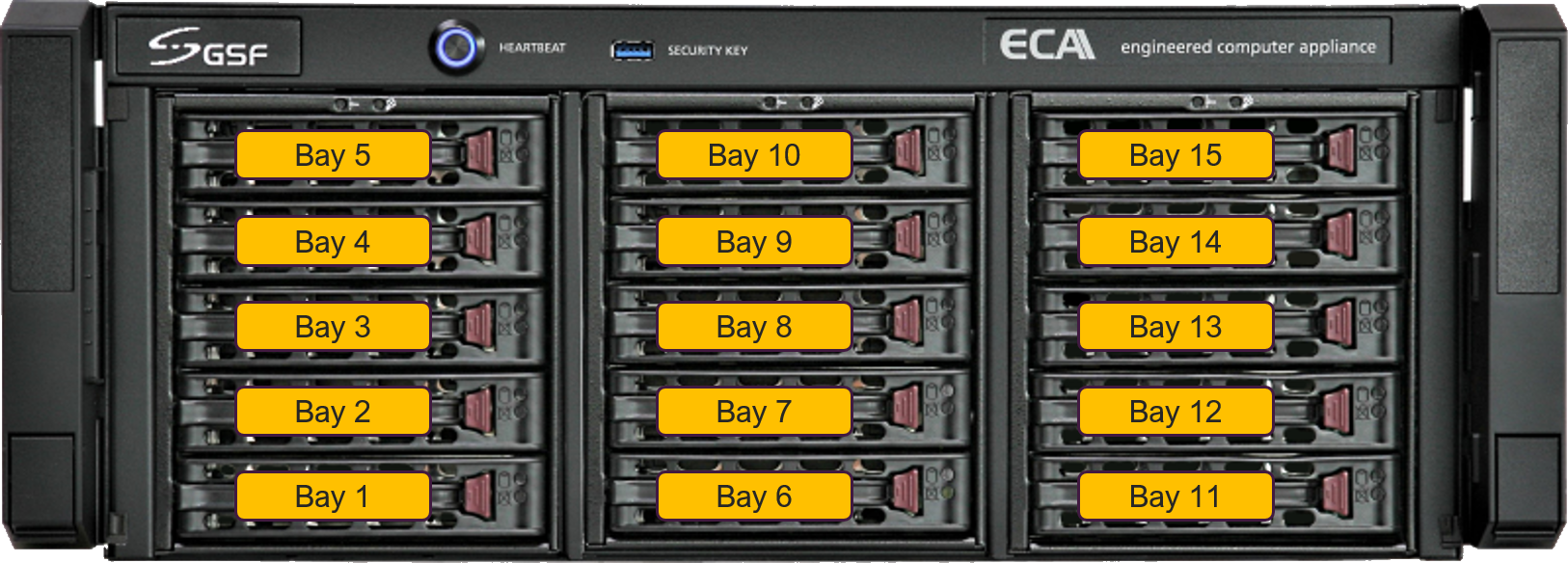
HDD Bay number and sequence
Step 3: Replace the HDD into the same HDD tray. Make sure all screws are fastended and secured properly.
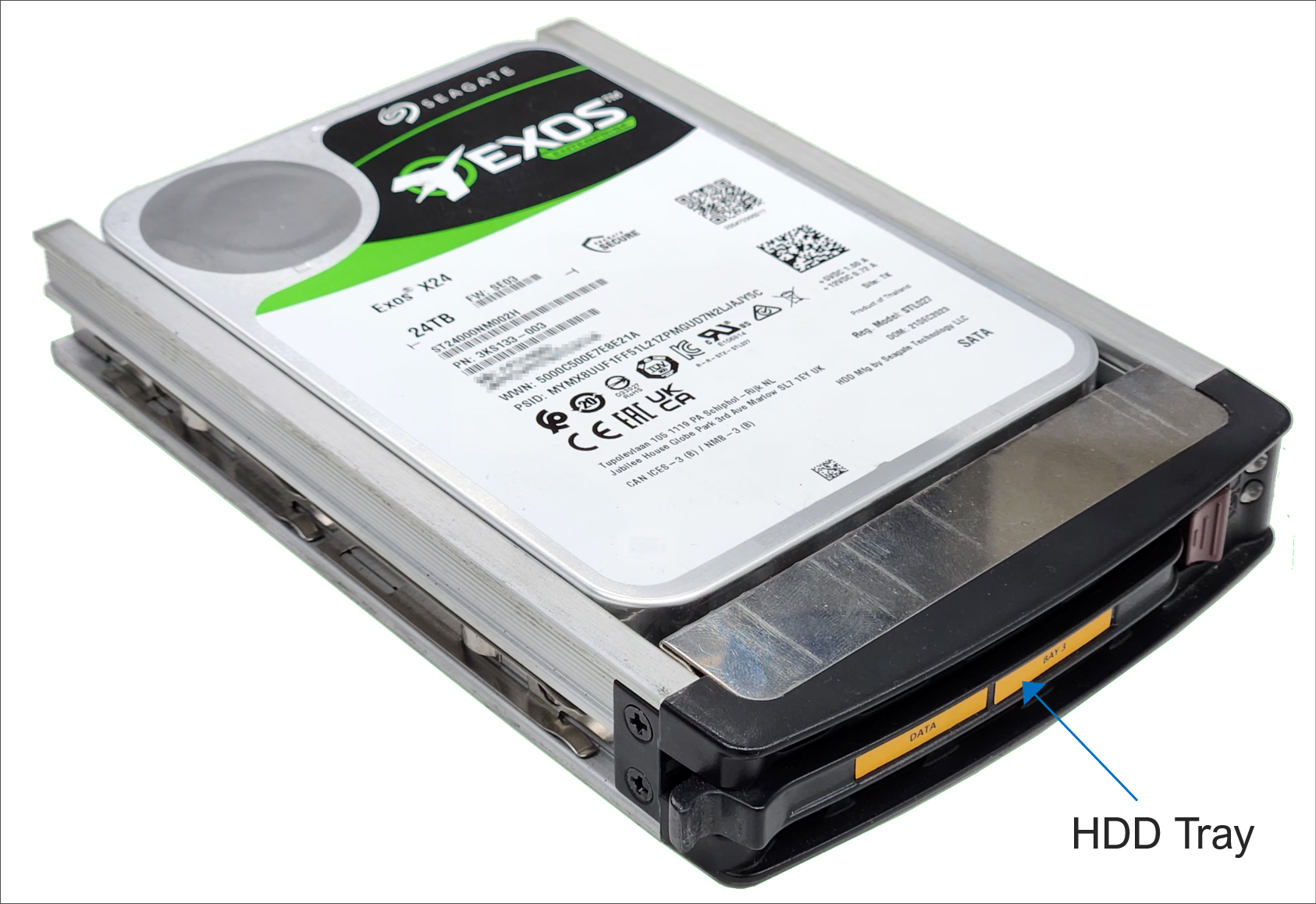
Step 4: Insert the HDD tray slowly and gently back into the HDD hot-swap bay.
Initialize or Format Replaced Drive in ecaOS
For Storage configured in Redundant Storage System (Single or Dual):
Follow the procedure in Redundant Storage System (RSS) Management in ecaOS 6.1 ▶ Repair Storage Pool
For Storage configured in Single Independent drive mode:
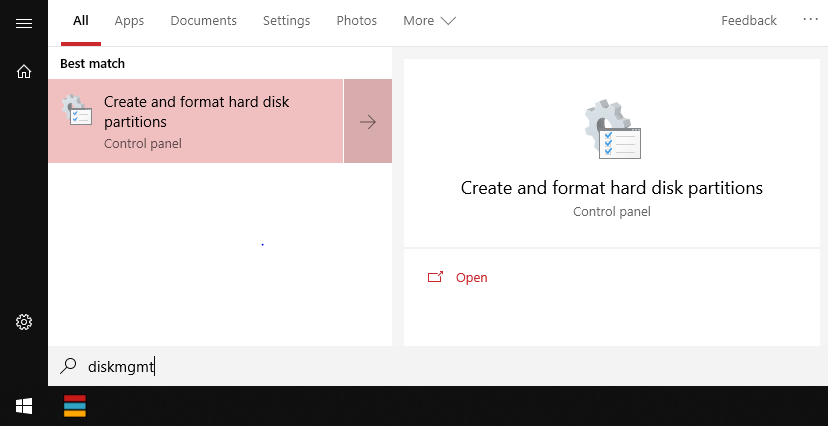
Step 1: In Windows Start, type diskmgmt.msc. Then, select Create and format hard disk partitions.
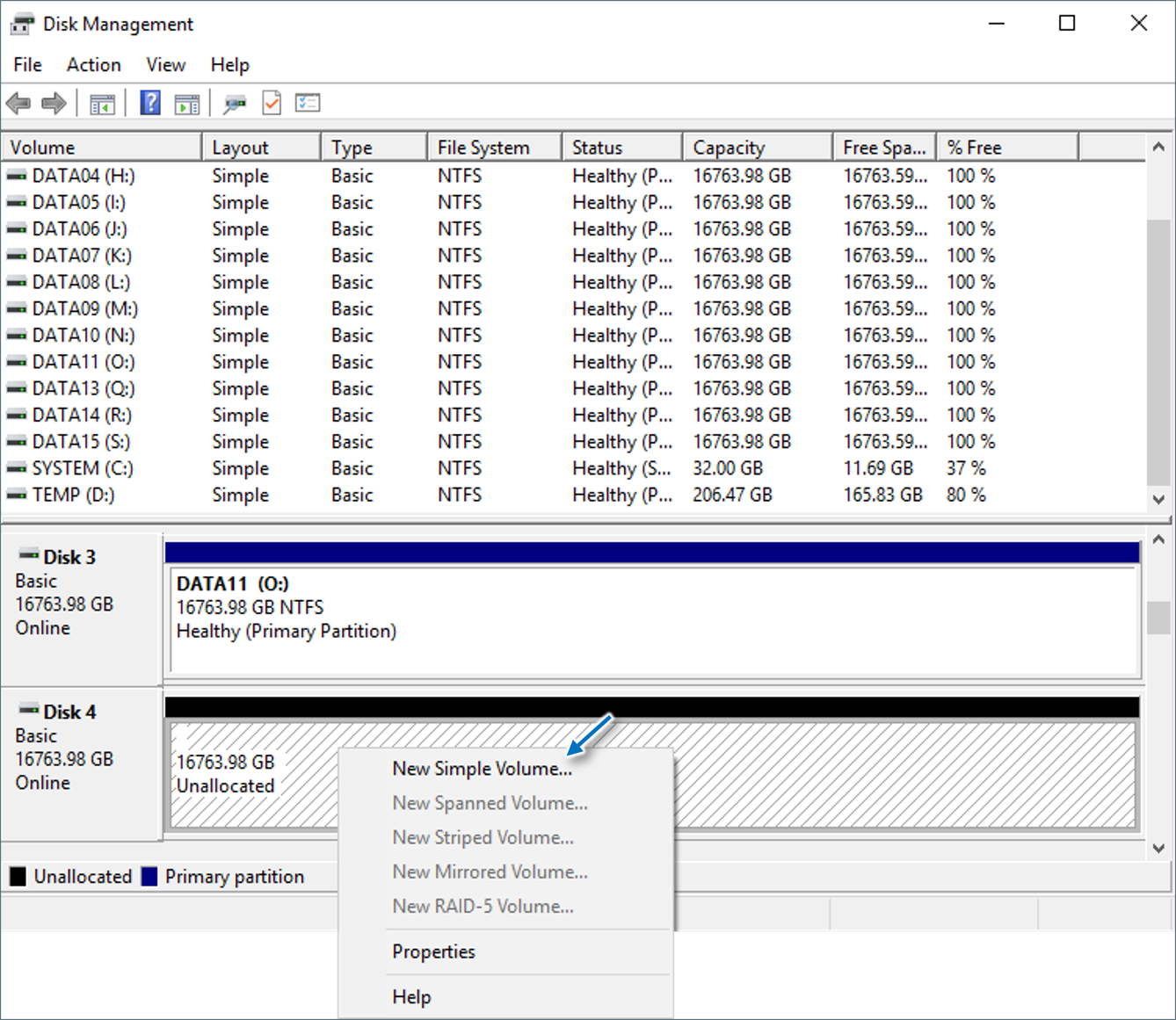
Step 2: Right-click on the replaced disk. Then, select New Simple Volume...
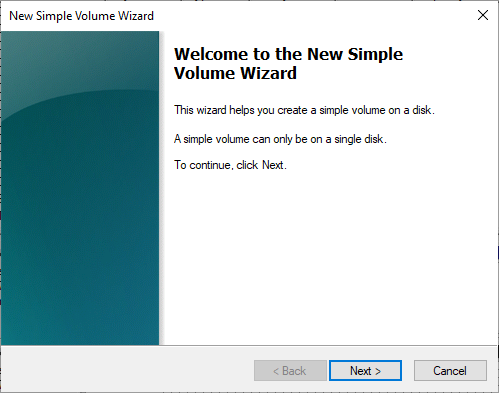
Step 3: Press Next >
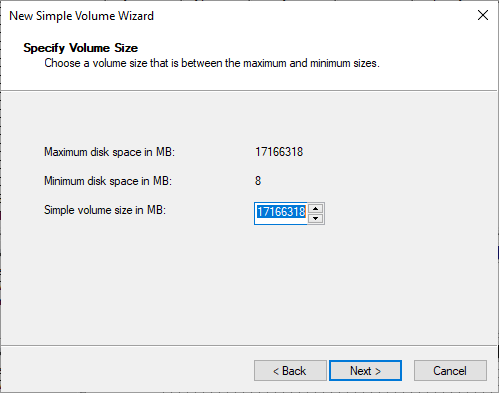
Step 4: Press Next >
Step 5: Press Next >
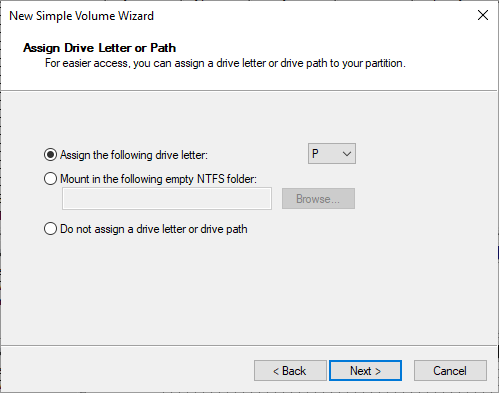
Step 6: Provide a Volume label. Then, Press Next >
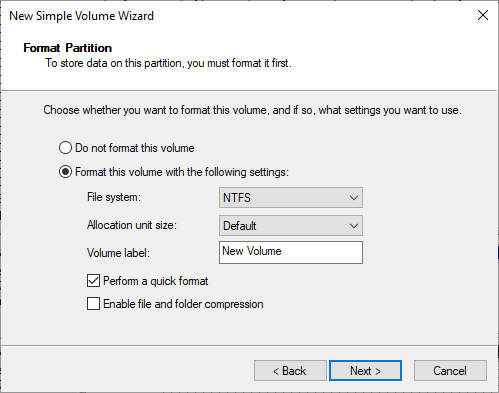
Step 7: Press Finish
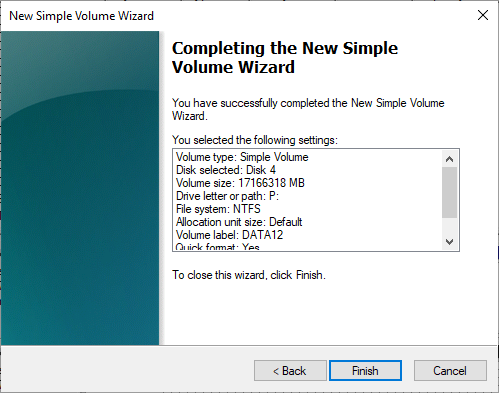
Step 8: Verify in your application, such as Video Management System, have added this replaced disk as its recording path.
Was this article helpful?
That’s Great!
Thank you for your feedback
Sorry! We couldn't be helpful
Thank you for your feedback
Feedback sent
We appreciate your effort and will try to fix the article