Step 1:
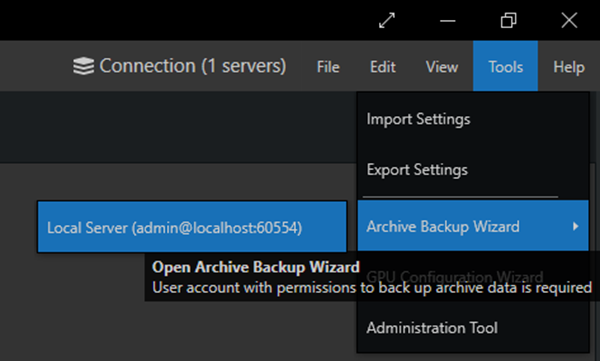
1. In Macula Monitor, open Tools > Archive Backup Wizard > select the target server.
2. User account with permissions to back up archive data is required.
Step 2:
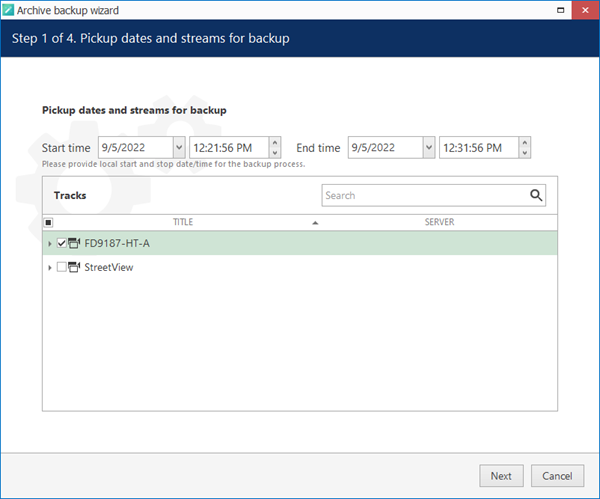
1. Select the channel(s) you need by putting a checkmark next to each one; specify the required time range above the channel list and click Next.
Step 3:
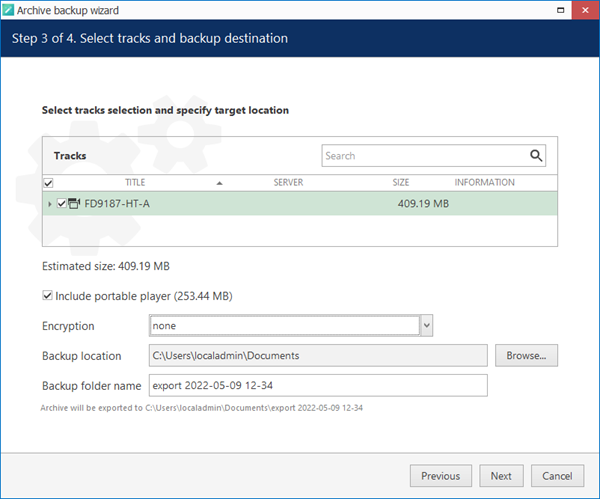
1. You can append the portable player tool with the copied part of the archive so that you can play the archive without having to install Macula server on another machine.
2. Here, you also need to specify a directory for the archive to be copied to: it may be a local hard disk, a shared network storage, or an attached USB drive. You are asked to choose an empty folder as a backup destination, so you may need to create a new folder from the standard Select folder dialog.
3. When ready, hit Next for the wizard to proceed with backing up the selected information
Step 4:
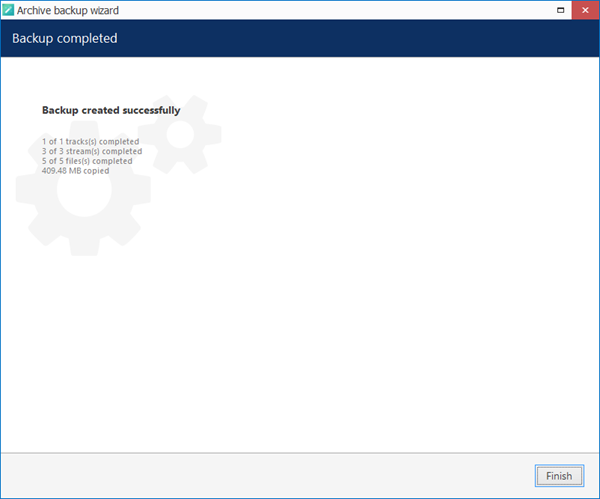
1. When it is finished, you will get a confirmation with a short description of what has been done.
Step 5:
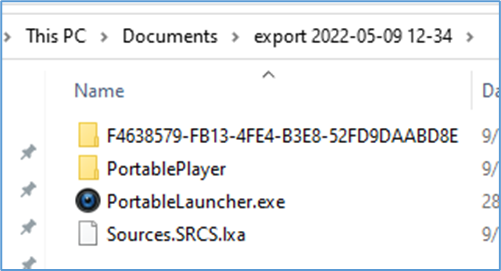
1. Go to the archive backup folder, and open the “PortableLauncher.exe”
Step 6:
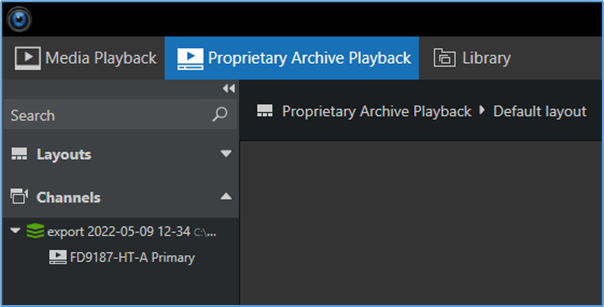
1. Select Proprietary Archive Playback mode, then double click the archive in the Channels panel to playback the archive.
Was this article helpful?
That’s Great!
Thank you for your feedback
Sorry! We couldn't be helpful
Thank you for your feedback
Feedback sent
We appreciate your effort and will try to fix the article