Step 1:
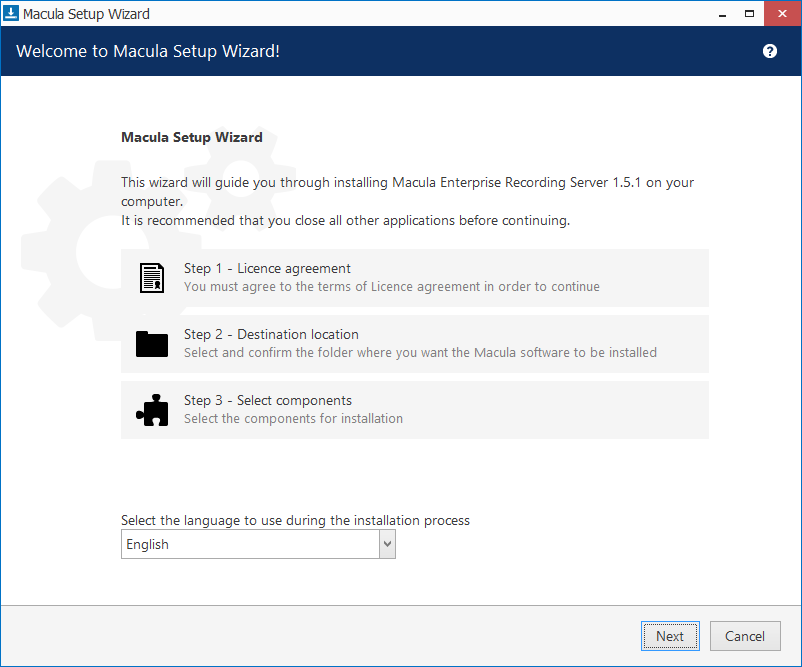
Double click the Macula Enterprise Recording Server executable package file. Select the language and then click Next button.
Step 2:
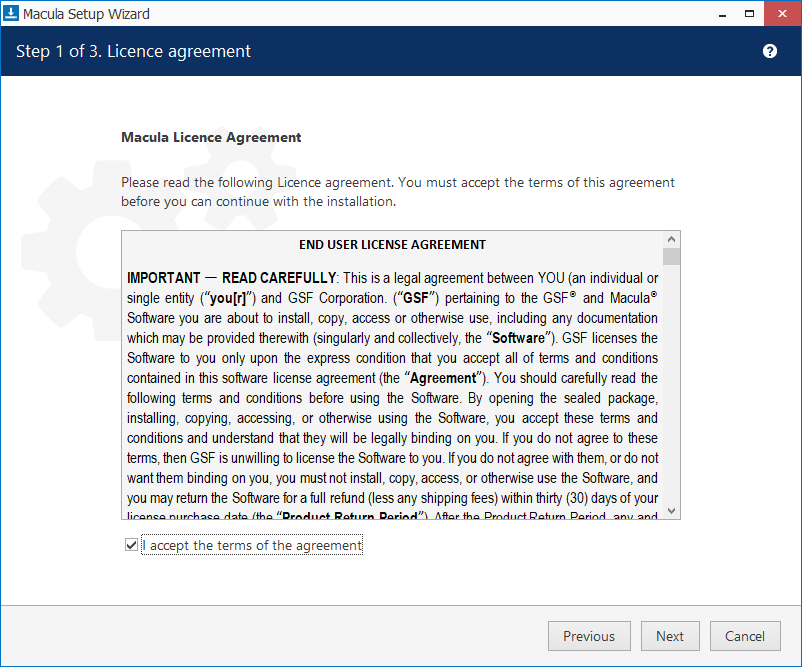
Read the Macula License Agreement, select “I accept...” in order to continue and then click the Next button.
Step 3:
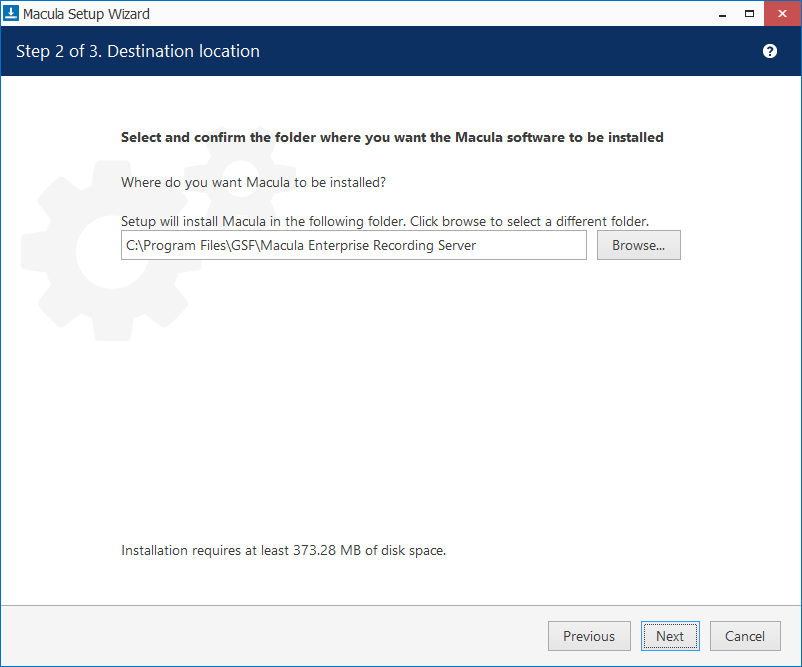
Select the destination folder you want the software to be installed in and then click the Next button.
Step 4:
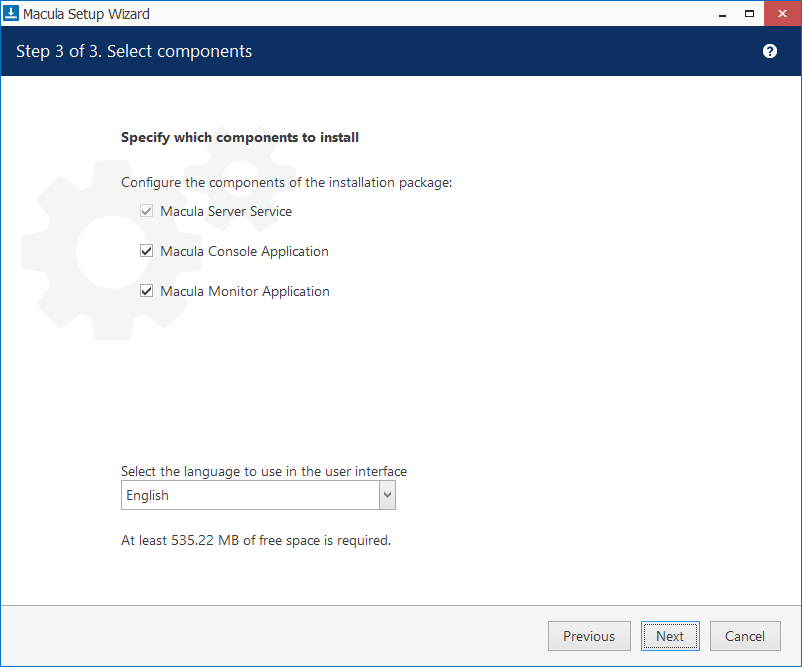
Select Software Components and then click the Next button
Step 5:
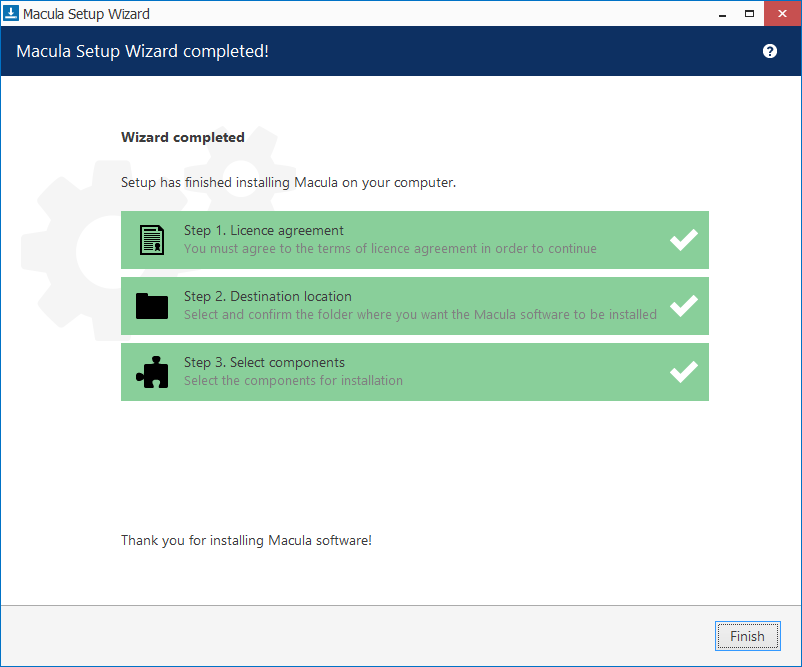
Click the Finish button after installation complete.
Step 6:
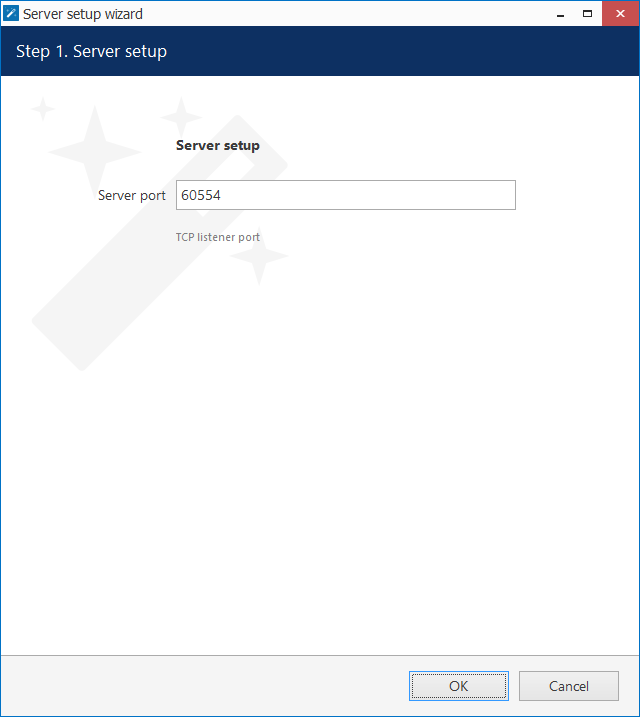
Configure the Recording Server port (default value is 60554) and then click OK button.
Macula Recording Server local port can be only changed by running the Server Setup Wizard tool locally on the Macula Recording Server machine. By changing the Macula Recording Server port via Macula Settings, you simply tell the central server what port should be used to connect to the Macula Recording Server.
Step 7:
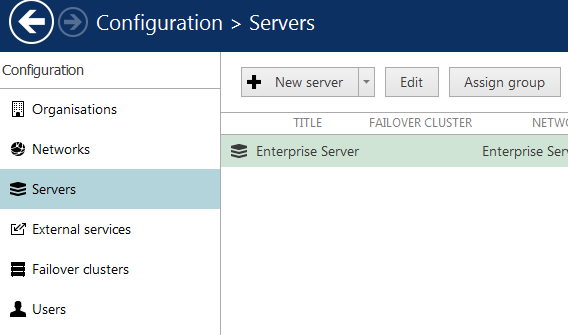
Login Macula Enterprise Server and then go to Server configuration section. Click the + New server button.
Step 8:
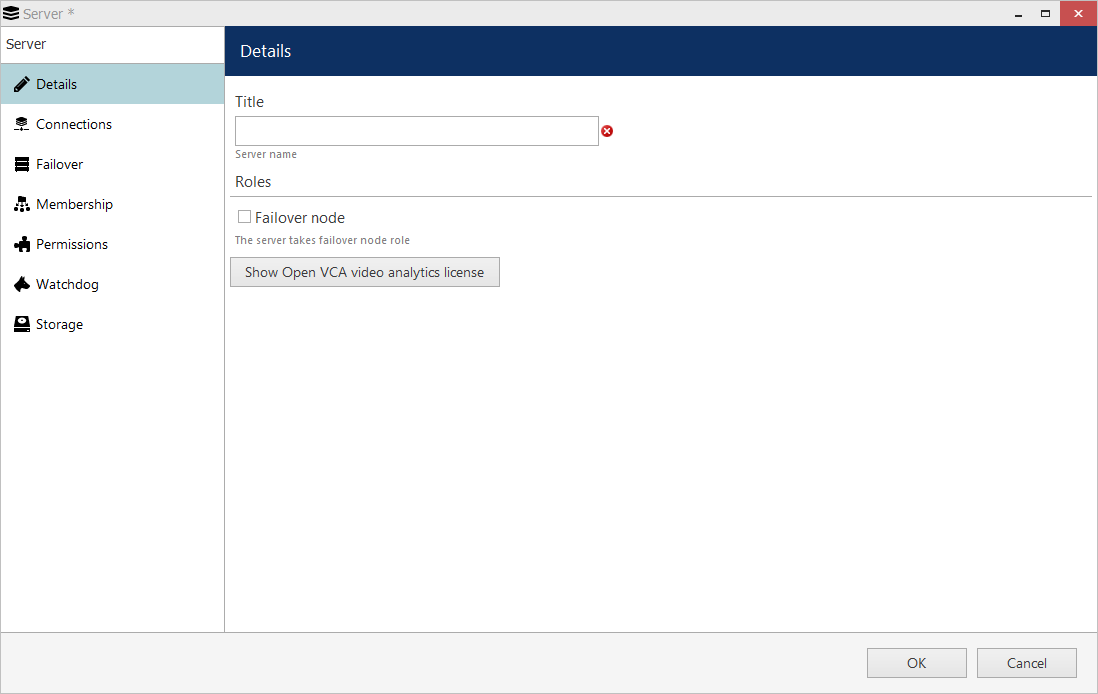
Enter user-defined server name in the Details tab.
Step 9:
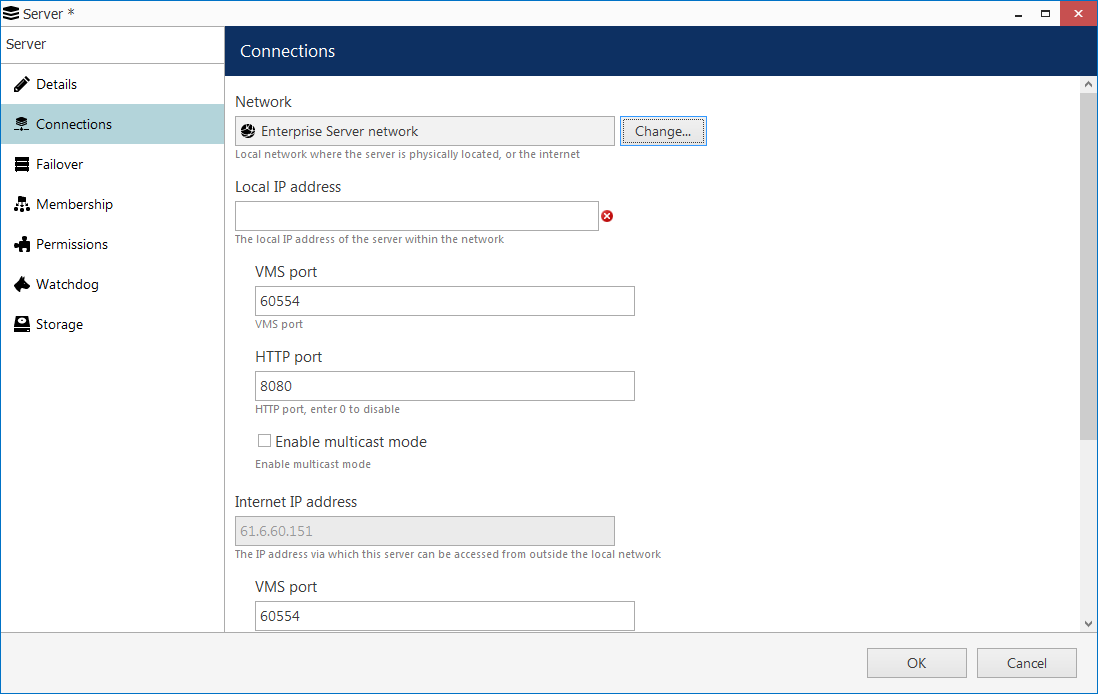
Enter Recording Server IP address and port number in the Connections tab.
Step 10:
Go to Storage tab, click the Open storage properties to open Storage properties dialog box.
Step 11:
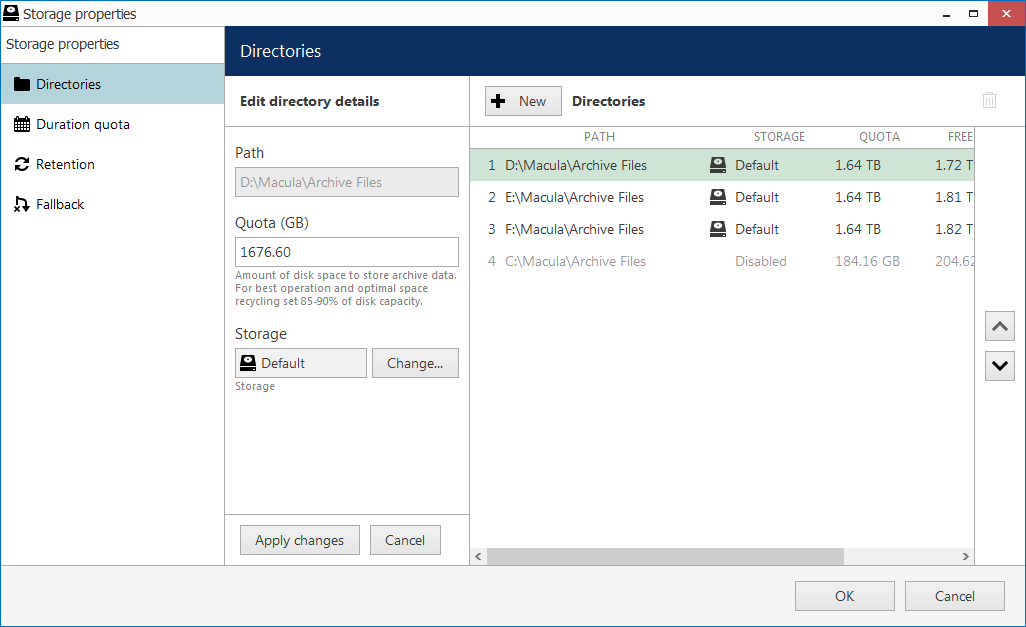
All available local disks will be automatically listed and enabled for recording with Default storage profile* and default archive directories. You can also add network paths to remote storage locations. Use UP and DOWN arrows on the right to change the disk order (priority). Click the OK button to save and exit the dialog box.
* The built-in storage types are:
Disabled: storage location will not be used
Default: default storage tag
Fallback: storage destination to be used if all the storage units with specified tags have failed
Read only: existing data will be available for reading and will not be erased; no new recordings will be appended to this location.
Was this article helpful?
That’s Great!
Thank you for your feedback
Sorry! We couldn't be helpful
Thank you for your feedback
Feedback sent
We appreciate your effort and will try to fix the article