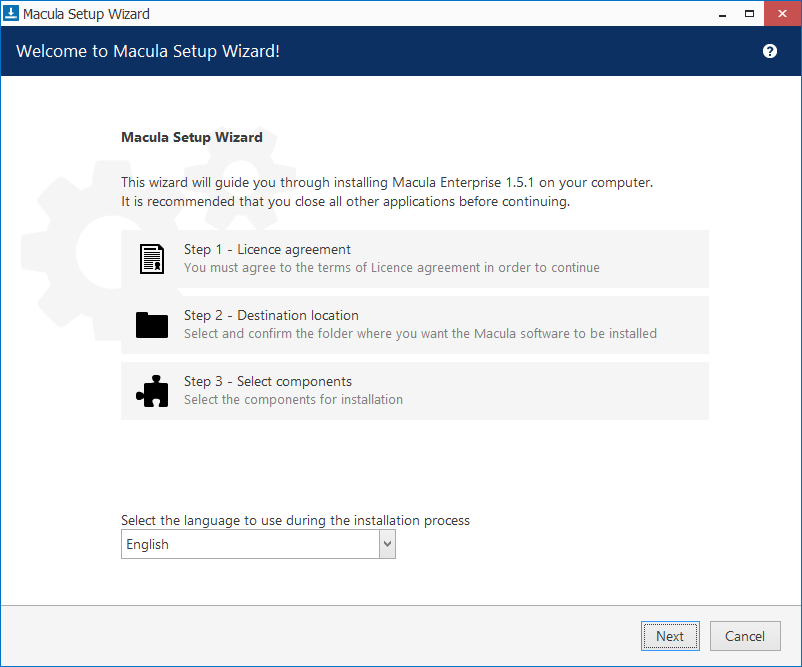
Step 1: Double click the Macula Enterprise executable package file. Select the language and then click Next button.
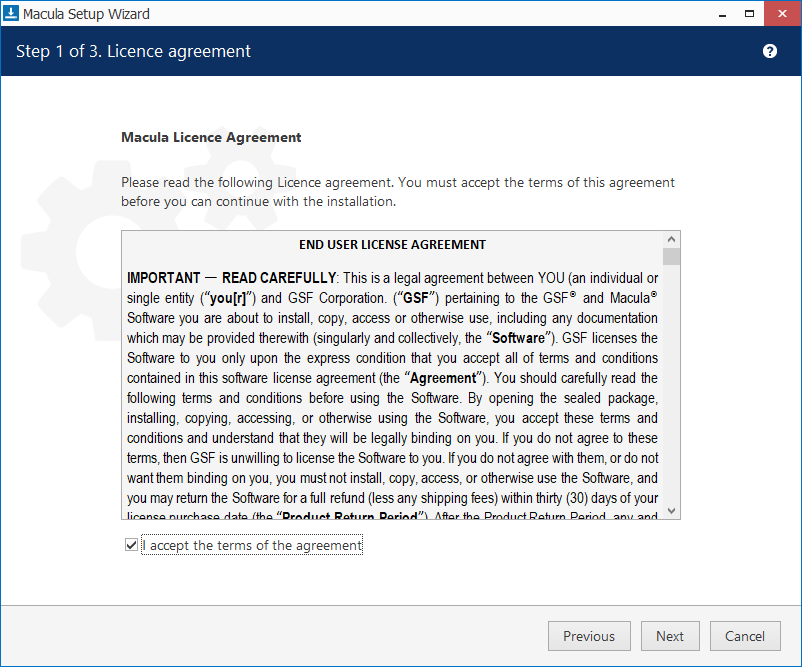
Step 2: Read the Macula License Agreement, select “I accept...” in order to continue and then click the Next button.
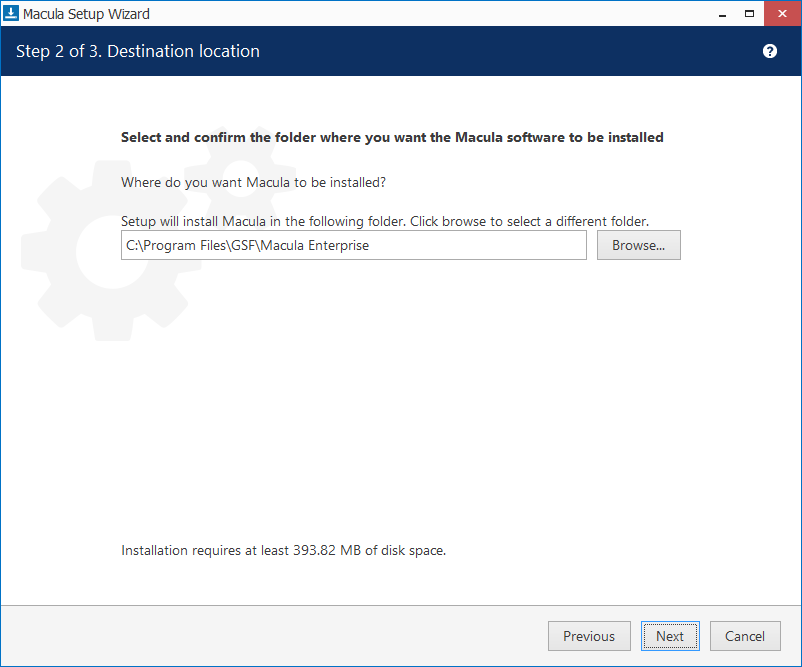
Step 3: Select the destination folder you want the software to be installed in and then click the Next button.
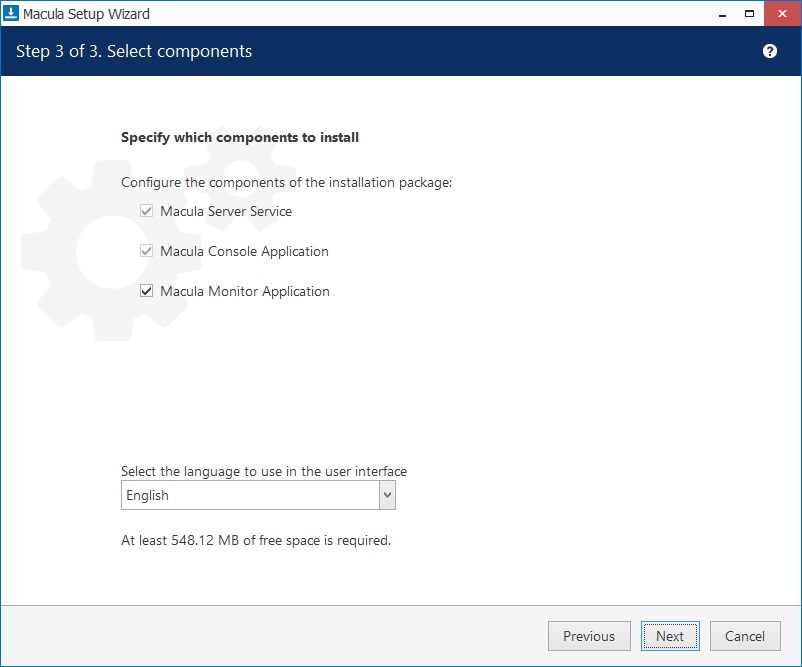
Step 4: Select software components and then click the Next button.
Step 5: Click the Finish button after installation complete.
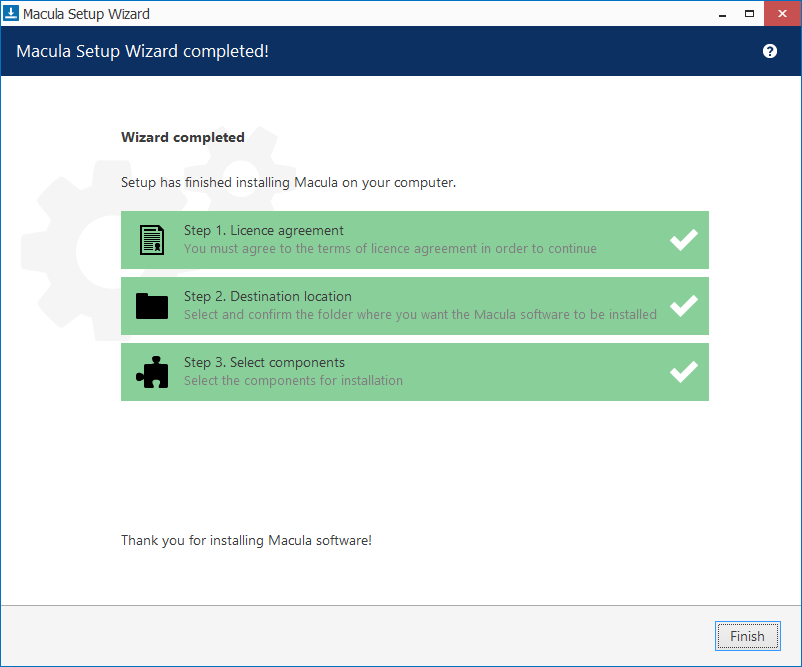
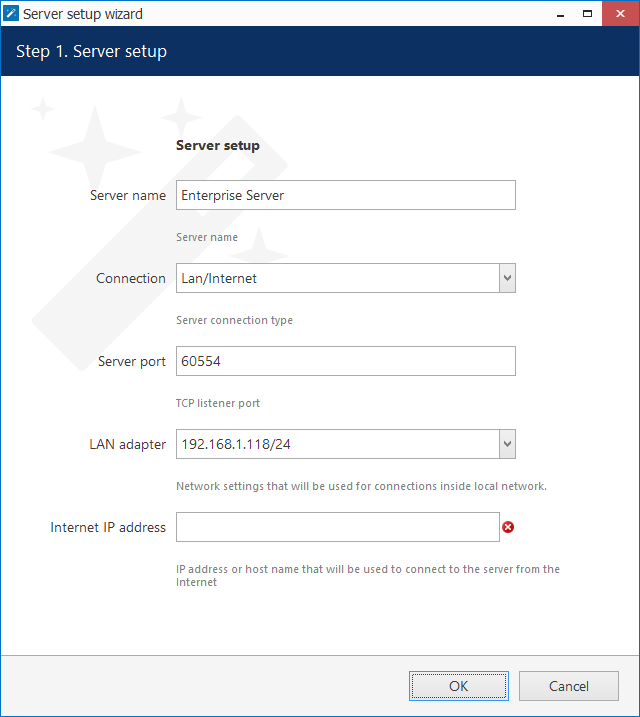
Step 6: Enter the Internet IP address and then click the OK button.
Step 7: Select Activation types and then click OK button.
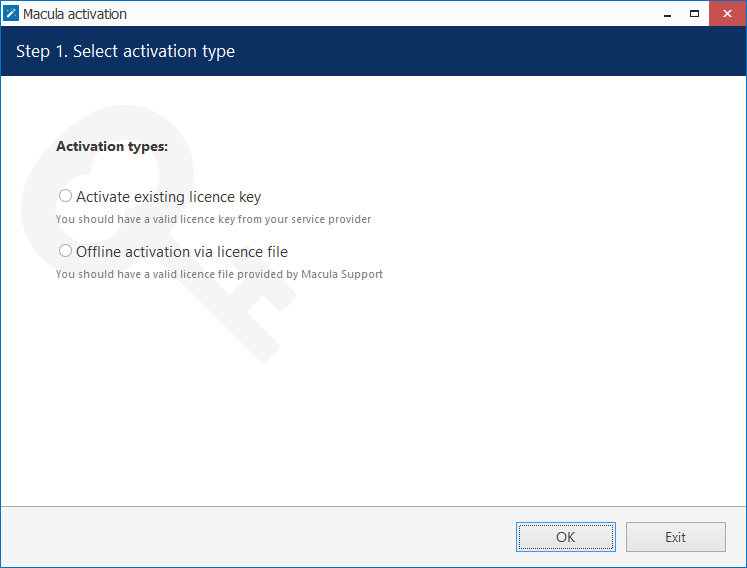
Go to Step 8 if select Activate existing license key.
Go to Step 9 if select Offline activation via license file.
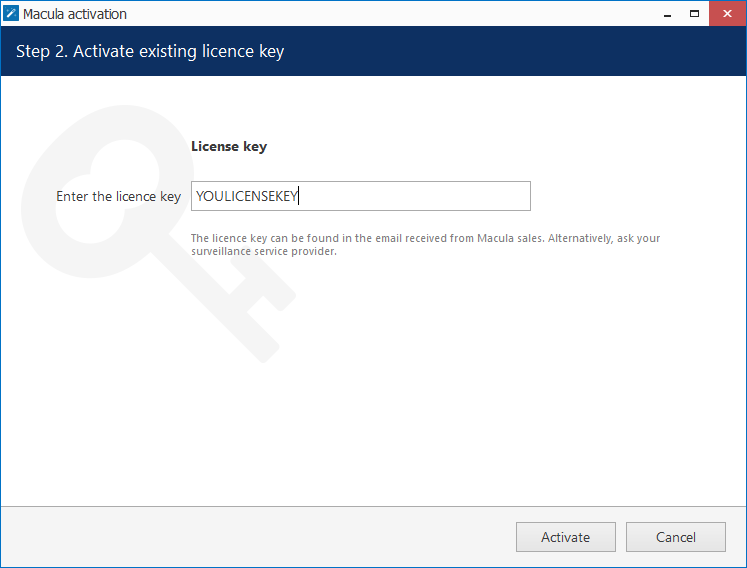
Step 8: Please enter the license key and then click the Activate button.
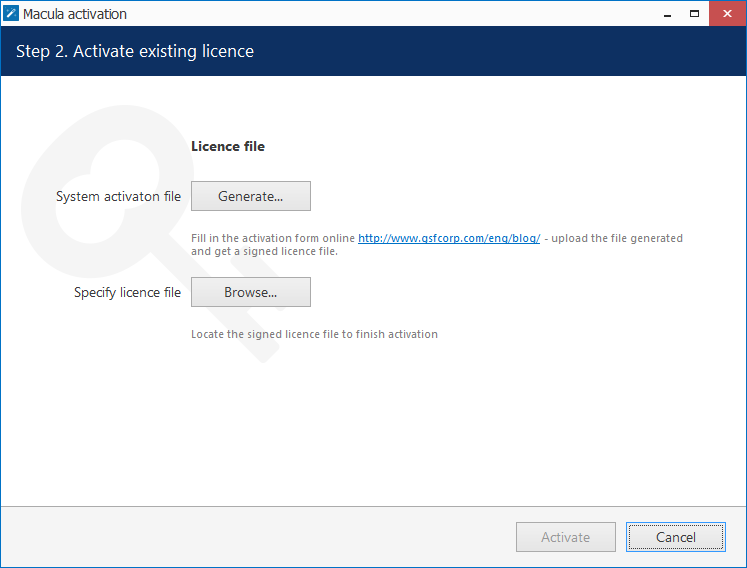
Step 9: Click on Generate to create the activation file; choose a location and save it. Please follow the instruction to get a signed license file.
Step 10: Click Browse to locate it and open the license.dat file provided by the activation system. Click the Activate button to apply the license file.
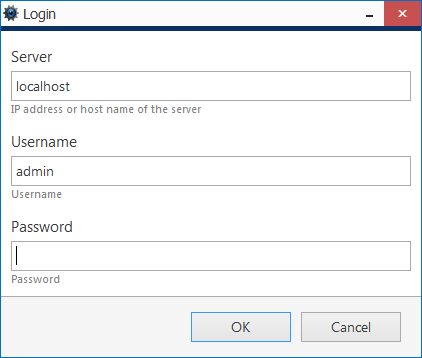
Step 11: Double click the Macula Console Application, enter Macula Enterprise Server IP address or host name. After logging in for the first time with the default username and password (admin/[empty]), you will be reminded to change your password.
Was this article helpful?
That’s Great!
Thank you for your feedback
Sorry! We couldn't be helpful
Thank you for your feedback
Feedback sent
We appreciate your effort and will try to fix the article