Applicability:
- ecaOS 6
Description:
- In ecaOS 6, Dashboard has replaced the System Manager (previously available on ecaOS 4 and 5, but deprecated in ecaOS 6).
Procedure:
- Method 1: Using Security Key (USB)
- Method 2: Using ECA Access Code
Method 1: Using ECA Security Key (USB)
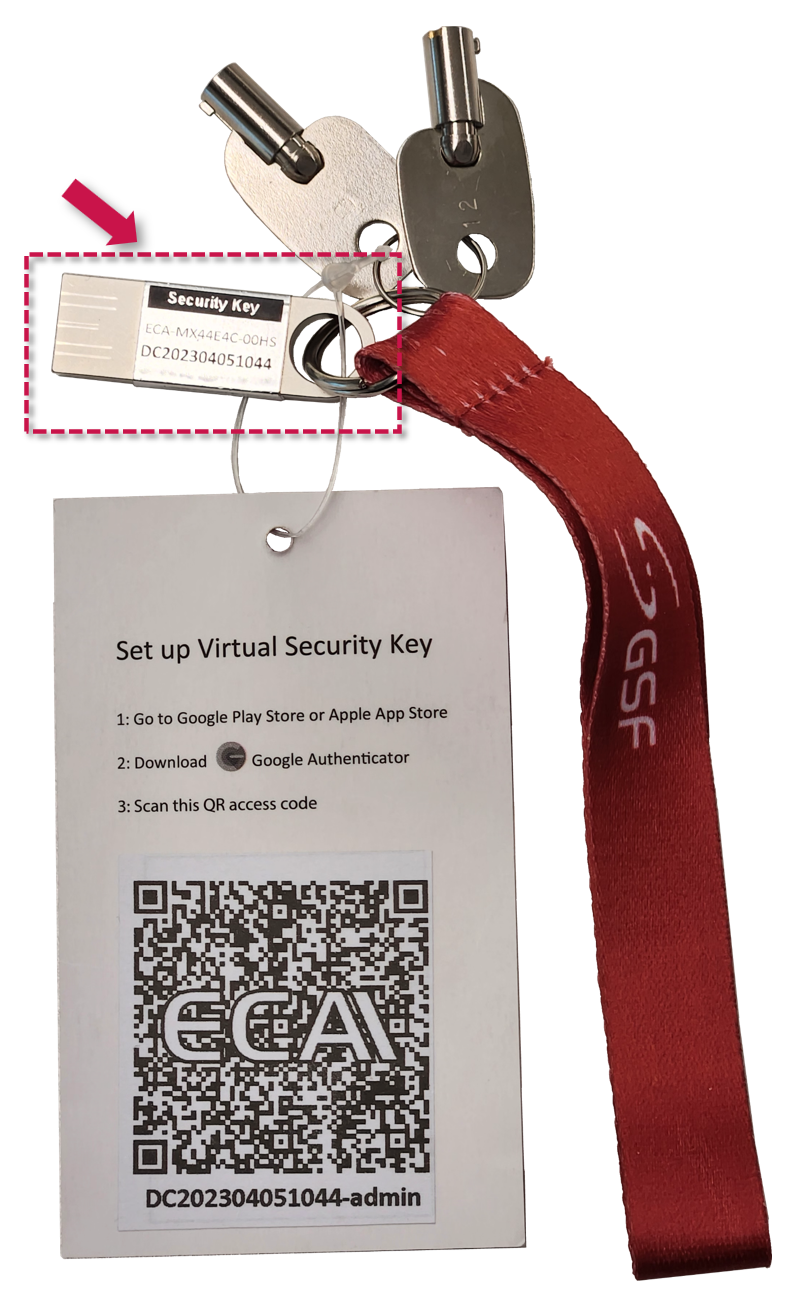
- Ensure you have the Security Key USB ready. Every ECA has its dedicated unique key, and cannot be shared with other ECA.
- Click ecaOS Dasboard icon
 on Taskbar to launch.
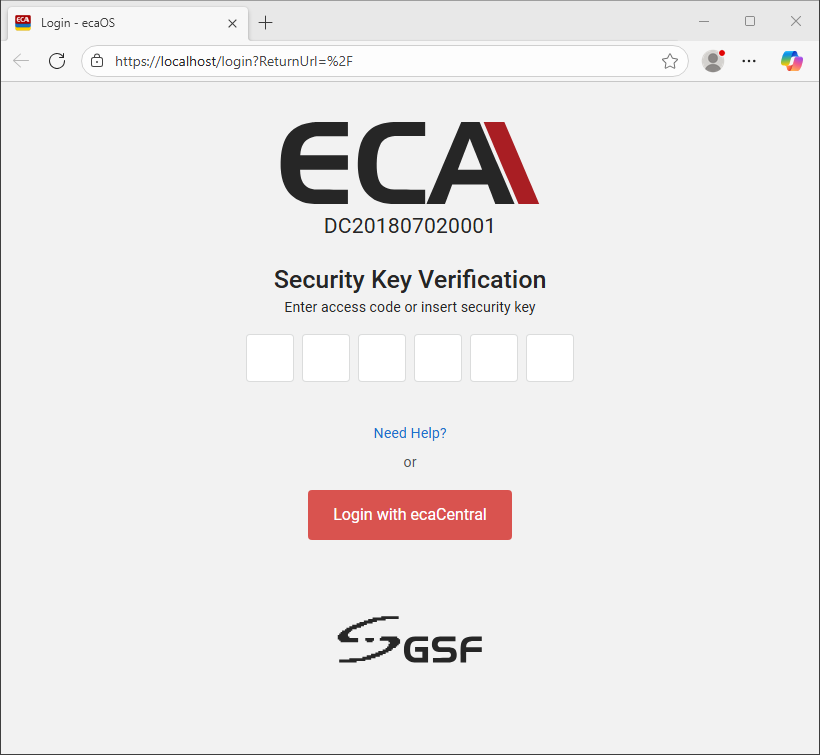
- The system web browser will launch, and the Dashboard login page will be loaded:
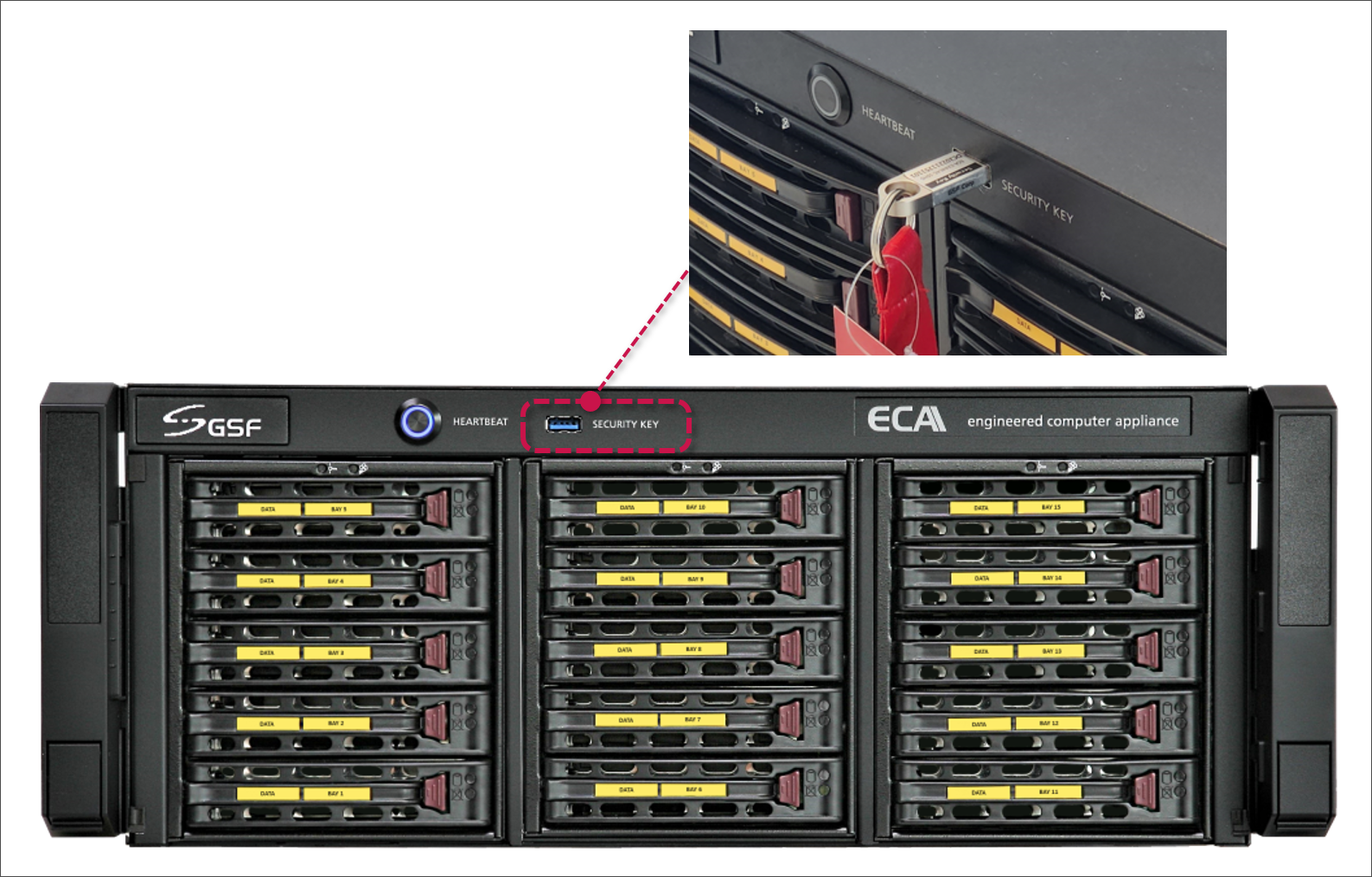
- Insert the ECA Security Key into SECURITY KEY port located on front panel of the ECA.
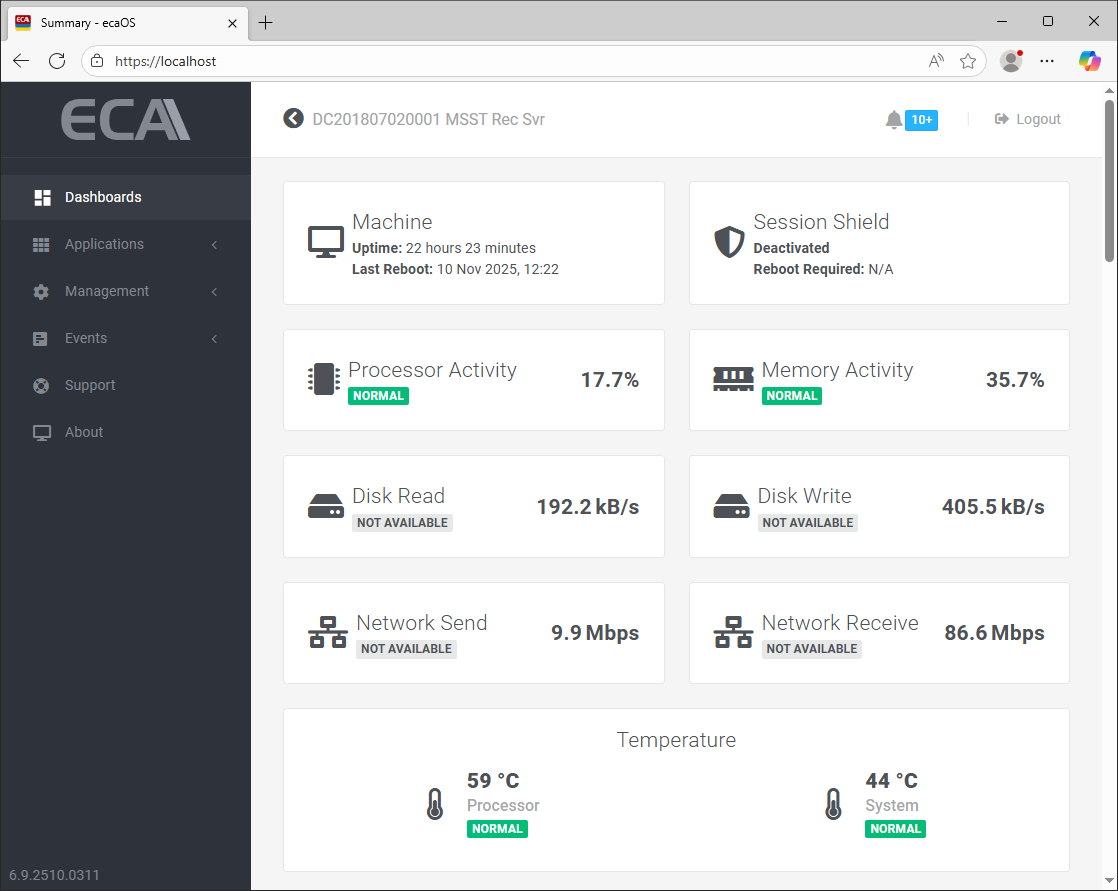
- Dashboard will appear:
Method 2: Using ECA Access Code
- Complete the procedure in [ Enrol Virtual Security Key for ECA Access Code ]
- Launch 'ecaOS DashBoard' located on the Taskbar.
- The system browser will launch, and the login page to DashBoard is loaded:
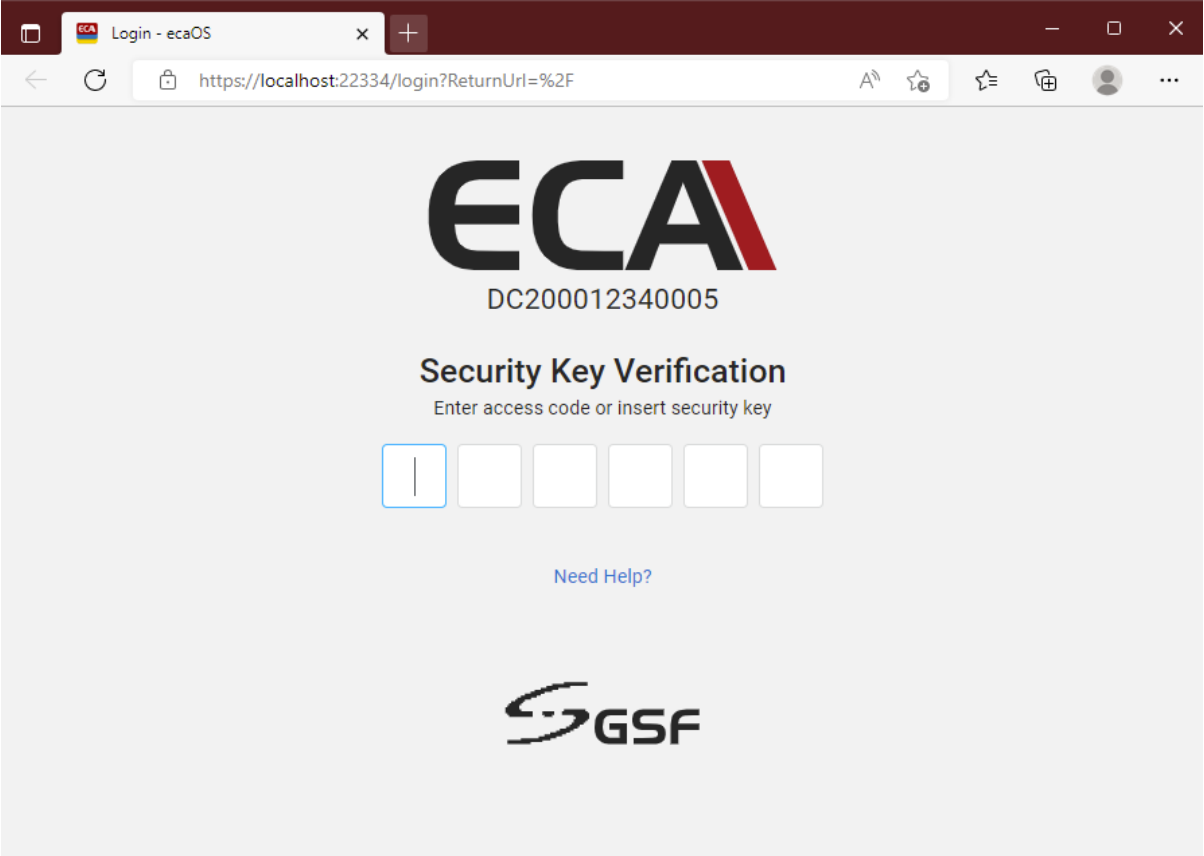
- Insert the 6-digit One Time Password (ECA Access code) from the Authenticator app on your device.
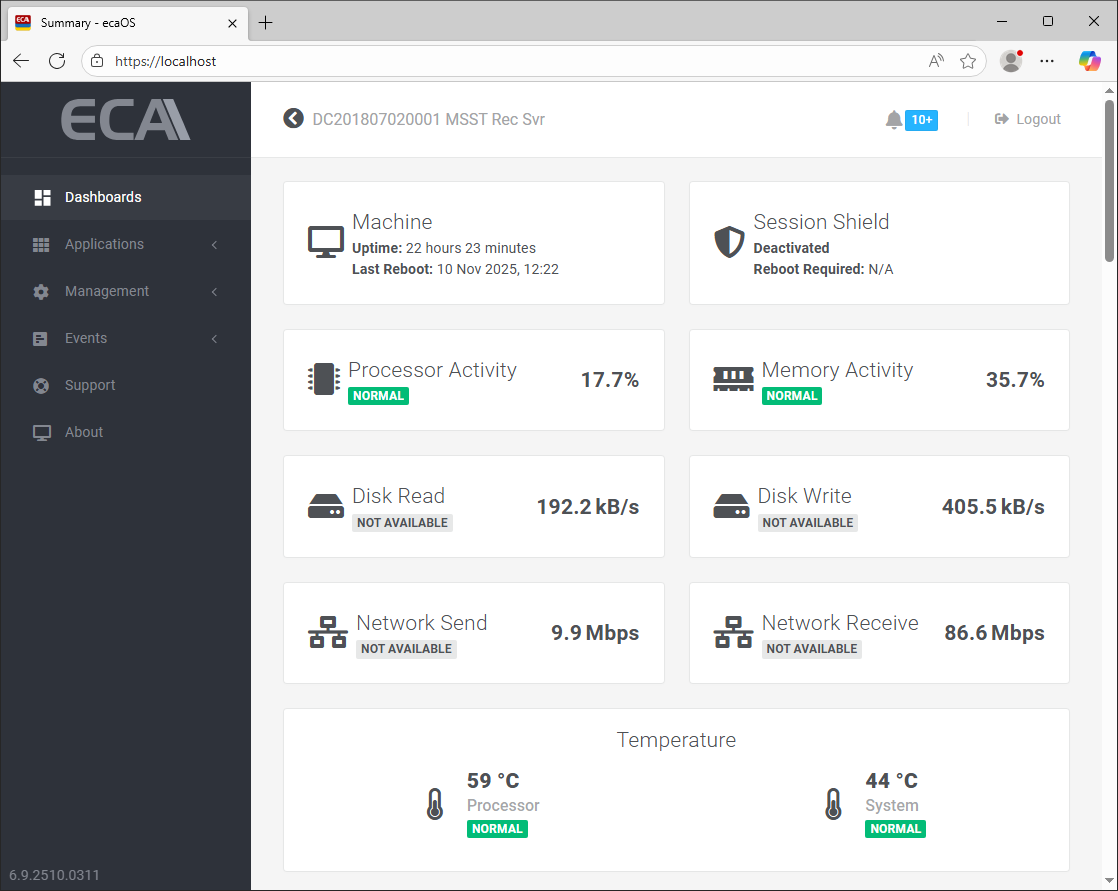
- DashBoard shows up automatically after the correct ECA Access code is inserted.
Was this article helpful?
That’s Great!
Thank you for your feedback
Sorry! We couldn't be helpful
Thank you for your feedback
Feedback sent
We appreciate your effort and will try to fix the article